Techemet App Setup on Android
Open the Chrome Browser on Your Android Phone.
Type techenetapp.com into your url bar and hit enter. Please accept any and all prompts from Techemet if you choose not to do so this will lead to an error. The only way to fix this error is to uninstall and reinstal Chrome or to access your Chrome both of which can be resolve by simply accepting any prompt from Techemet.

Welcome to the Techemet App.
Click the Login Button.
If you want to change the Default Language you can make your selection in the dropdown box.
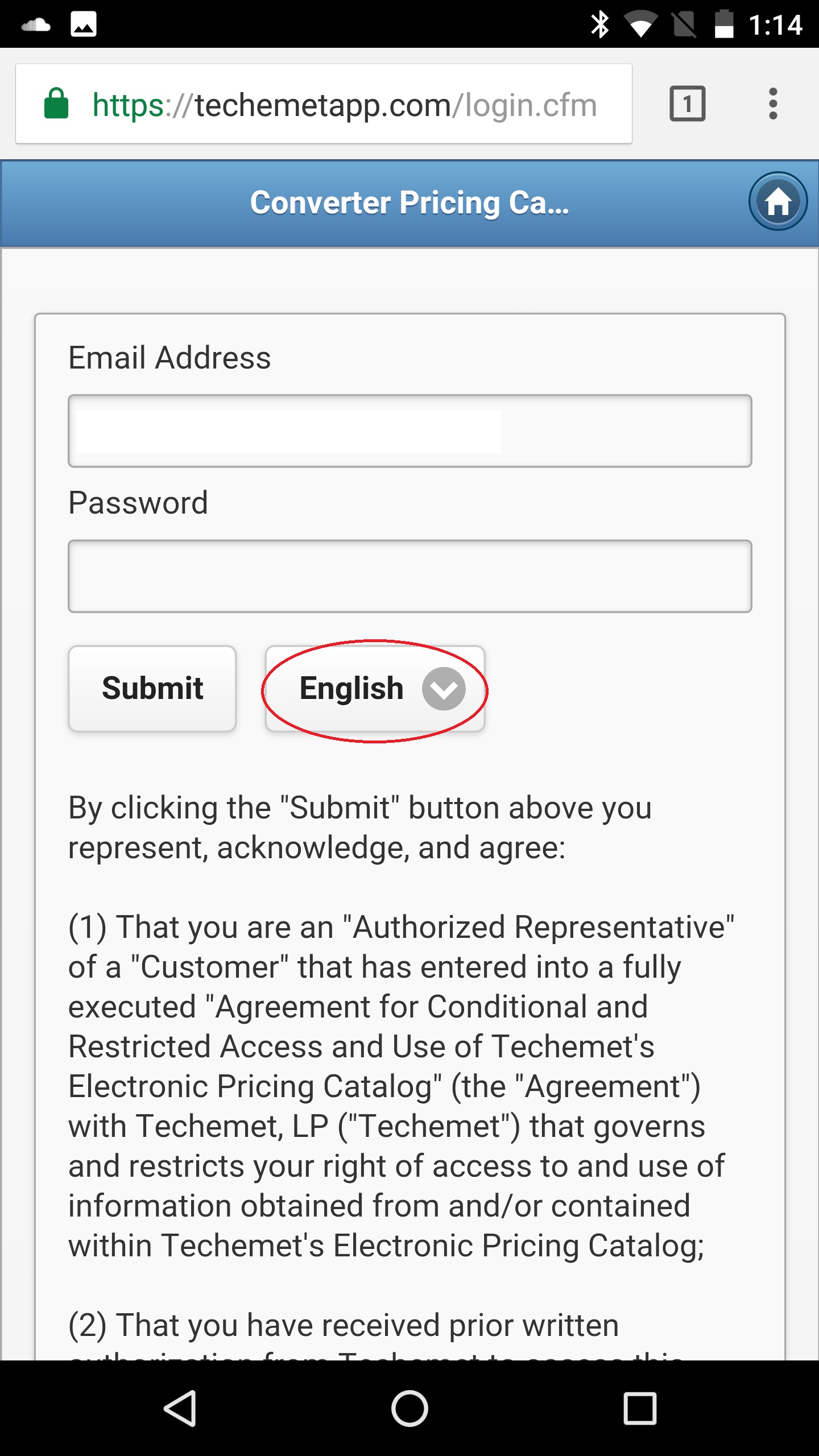
Input your Username and Password. Then click submit.

If you receive a prompt asking you to contact your administrator this means that either he/she has not signed the digital copy of the contract of you have not. It would be located in your email it looks like this...

By clicking on the link I can read and agree to the contact if you do not have the rights to approve your own app please ask for assistance from your supervisor. You will need to click on the click here to authorize link.
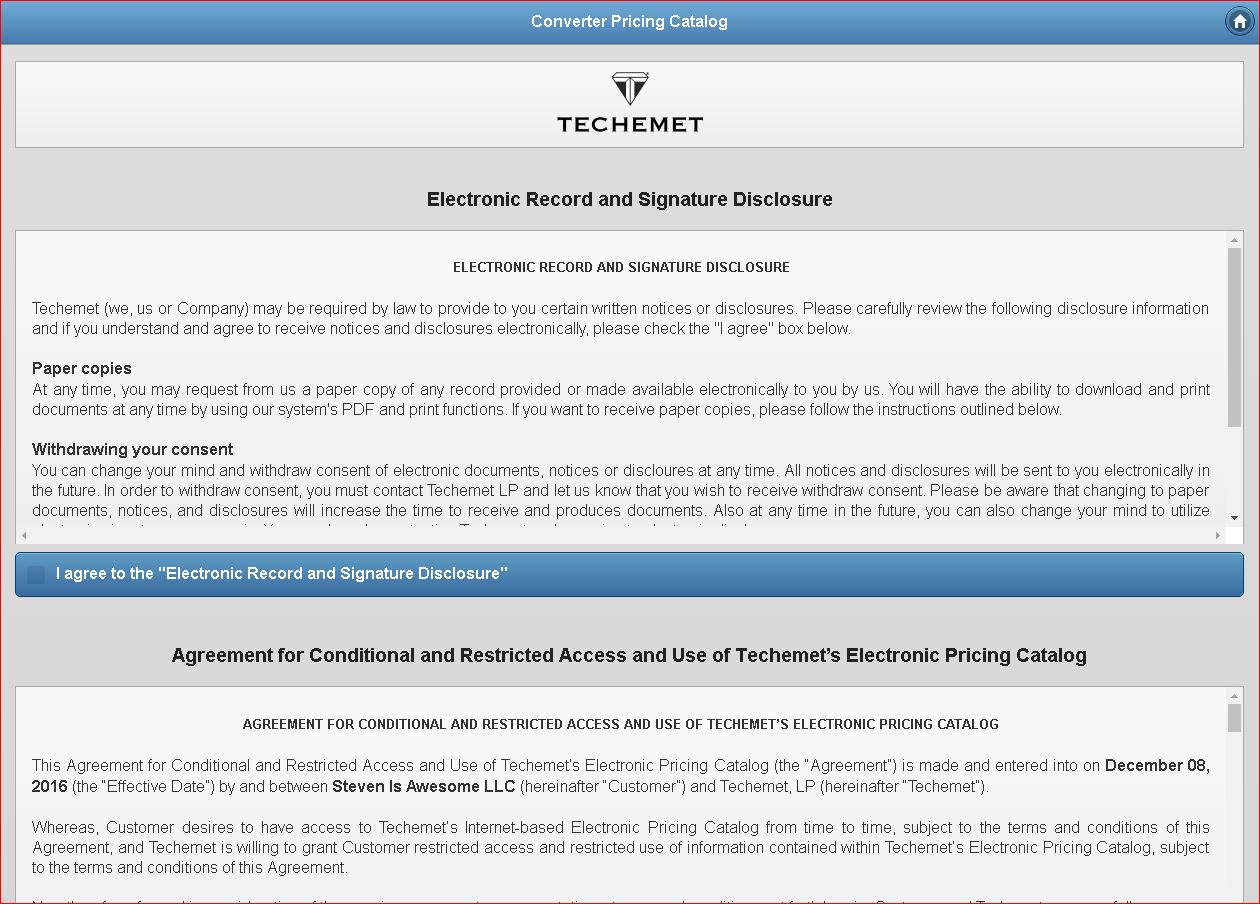
This is the document you must agree by checking the check boxes and filling out and signing the signature box.
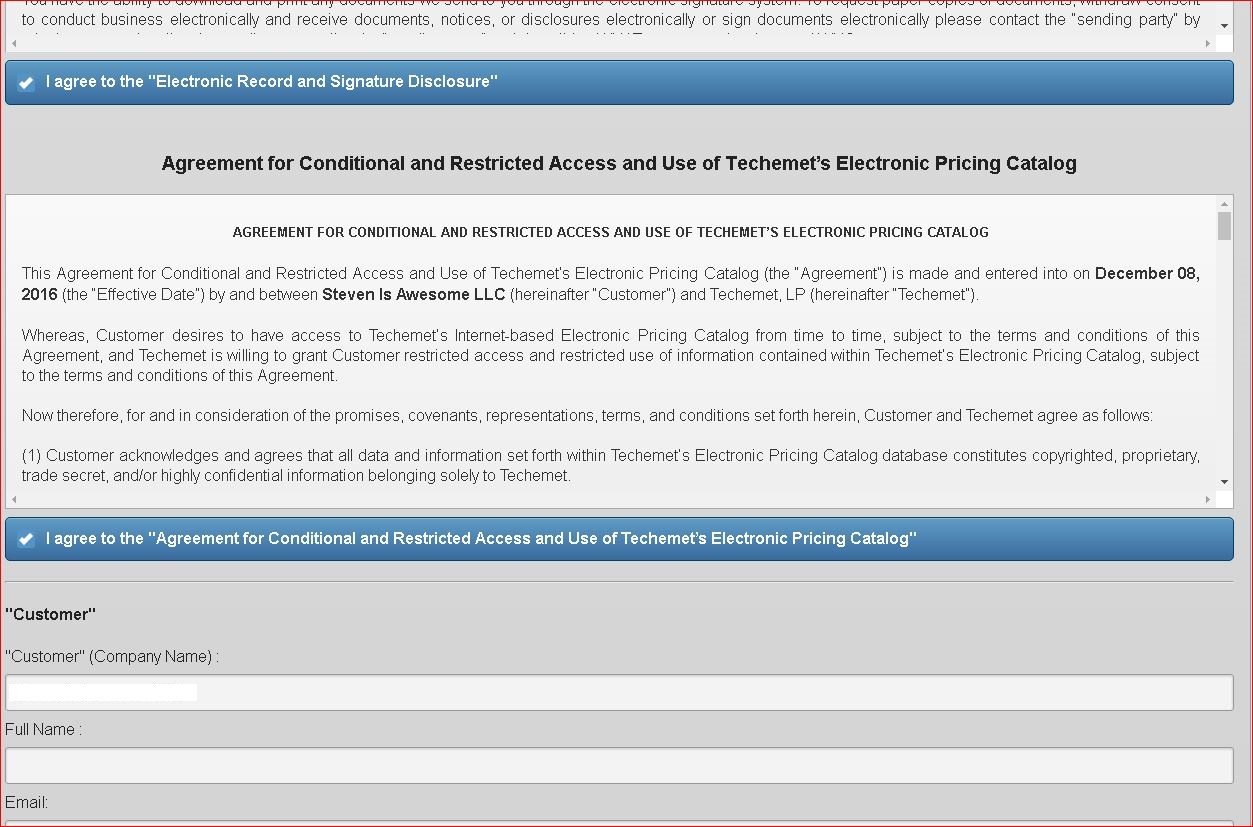

Once this is all signed and returned you will receive this email.

Now back to the app and login.
Once logged in you will need to sign the contracts as an user.
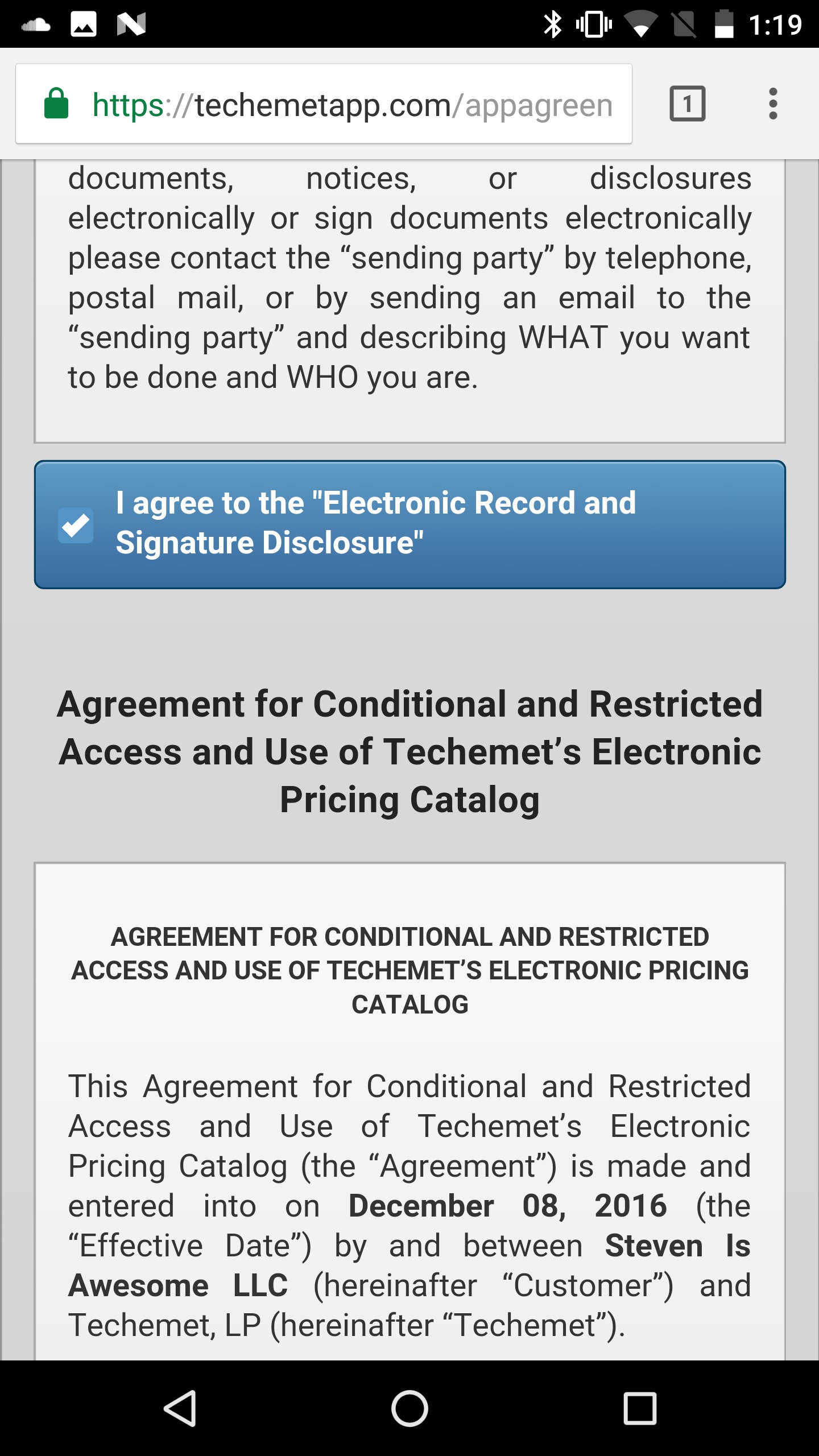
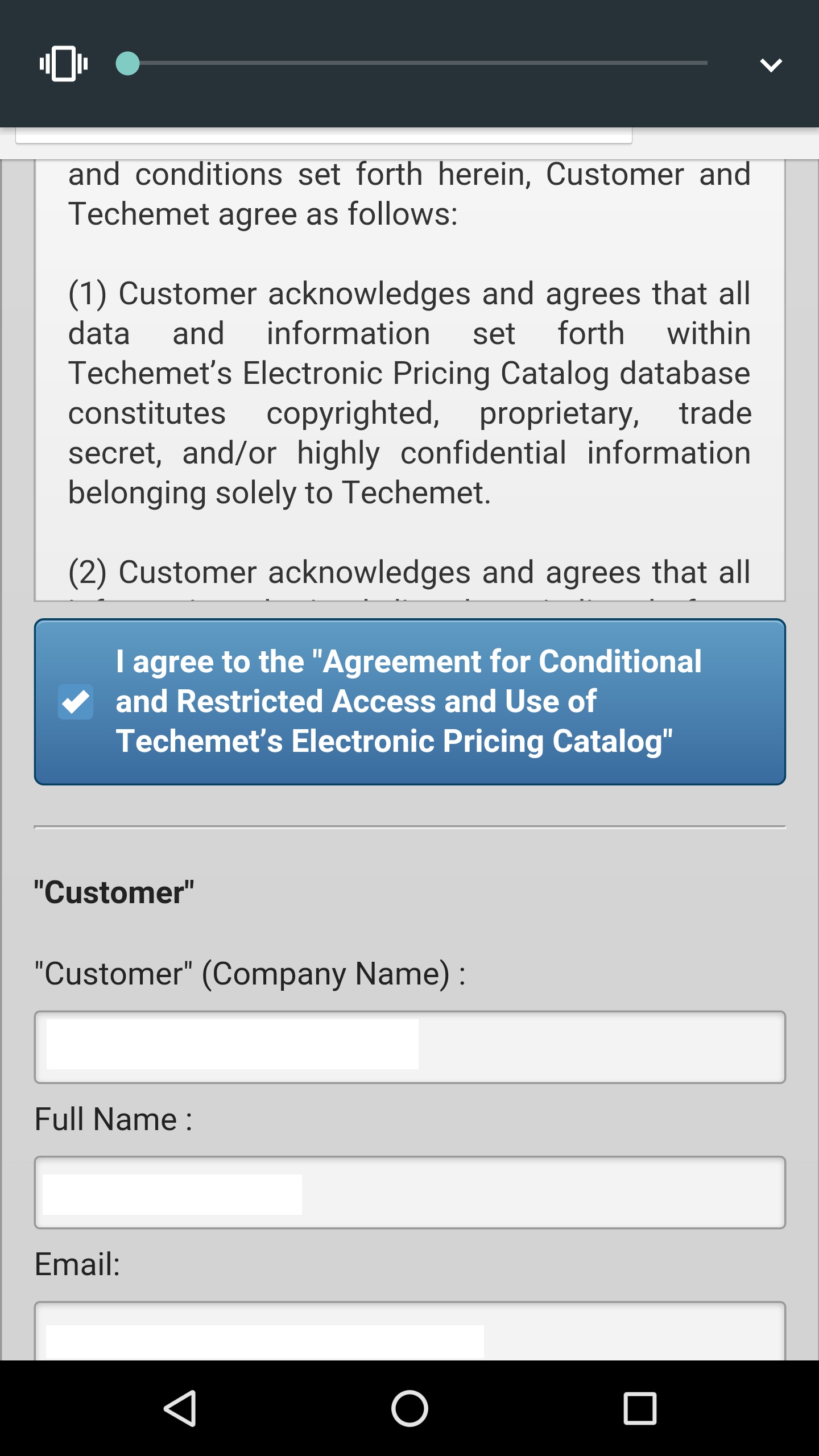

Once you have completed the contracts you can now access the app.

Now you can create a link on your home screen by selecting the option bellow from Chromes menu.
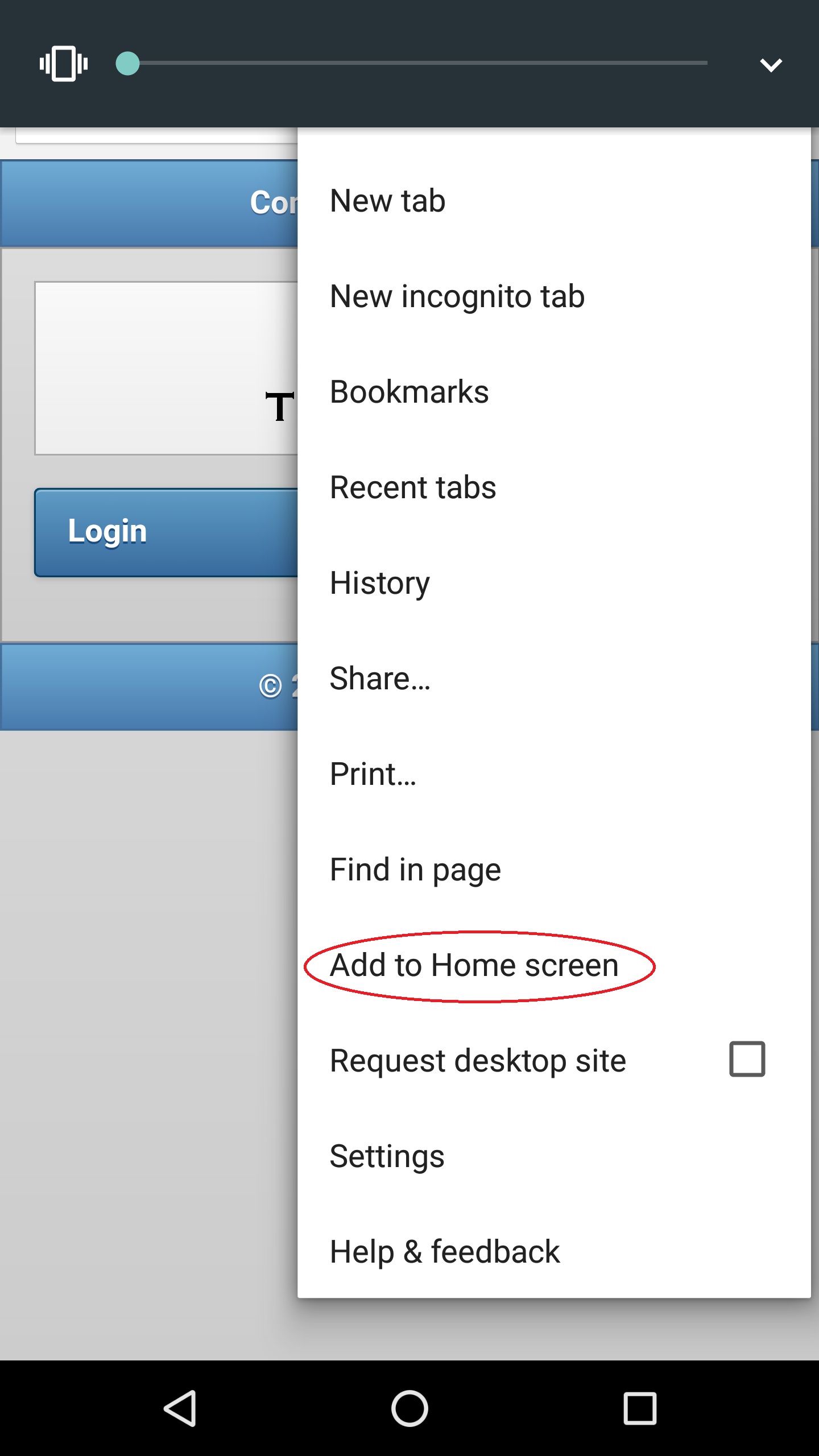
You will then be able to see an icon on your home screen for the Techemet App.

As you go through the process you will need to make sure you are sharing your location with the app. To do this you will need to allow any prompts from techemetapp.com and make sure your location services are turned on for the chrome browser you can edit these things in your settings.

