Techemet App Set Up In Safari
Open Safari.
Click on the Bookmark icon on the screen.
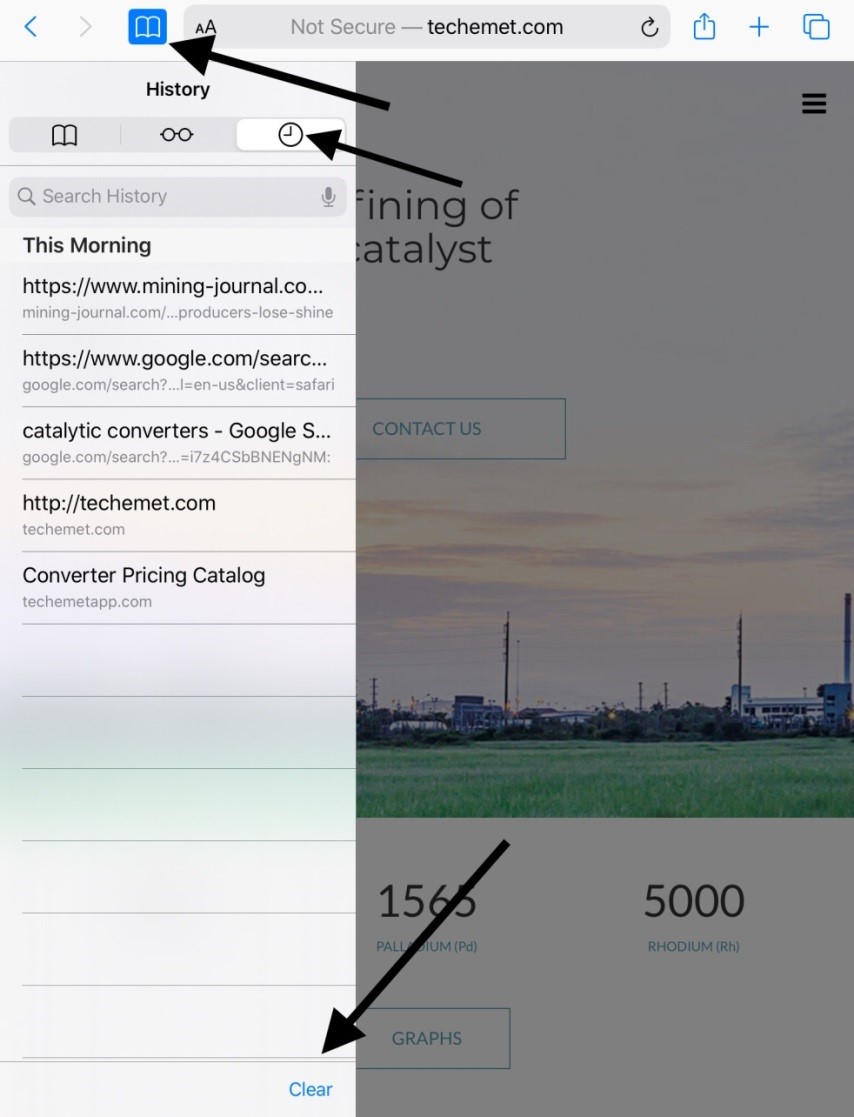
The Bookmark screen appears.
Click on the Clock icon which appears on the top right hand side of the pane.
The History screen appears.
Click on “Clear” (bottom right hand side of the pane).
A pop-up screen appears.
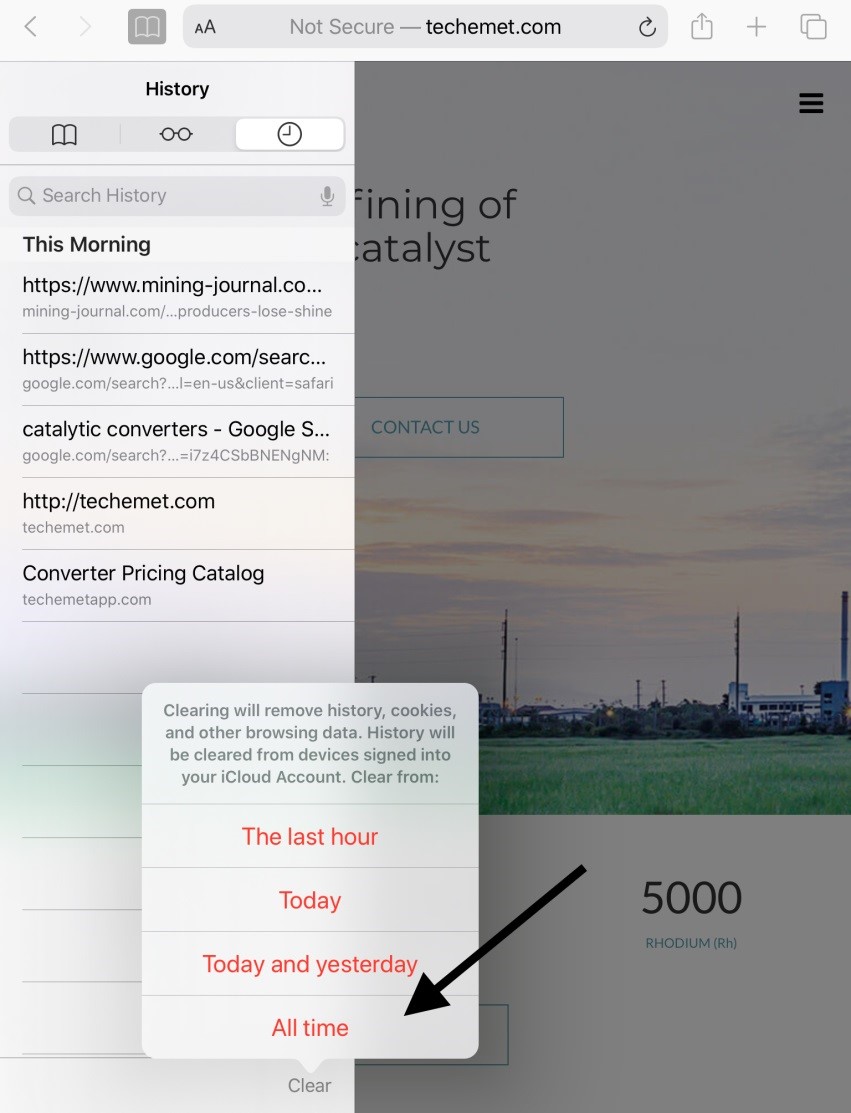
Tap “All time”
Tap “Done”or tap on the url field to clear the screen.
Type https://techemetapp.com in the Safari search bar.
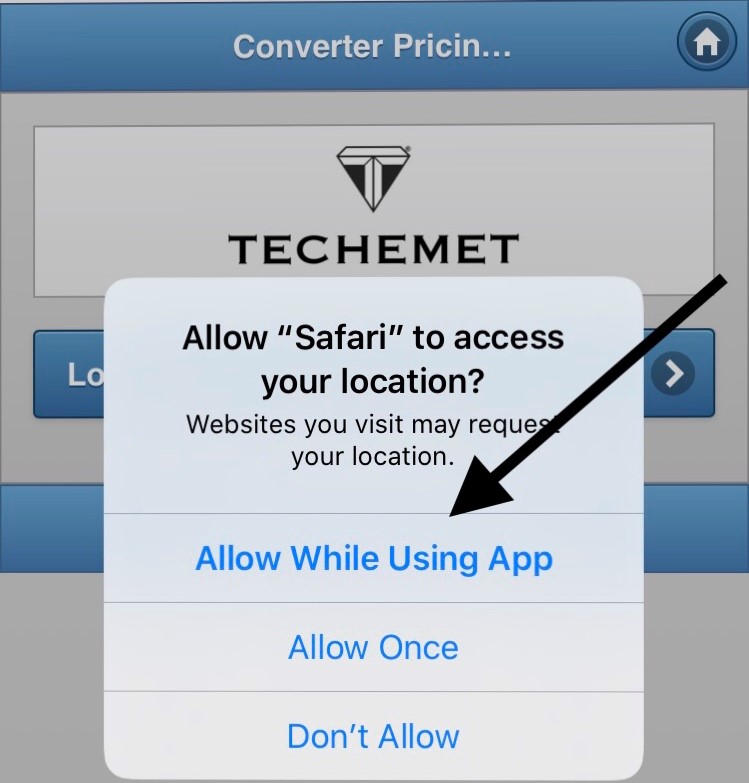
A pop-up screen appears. Tap “Allow While Using App”.
Tap the Login button.
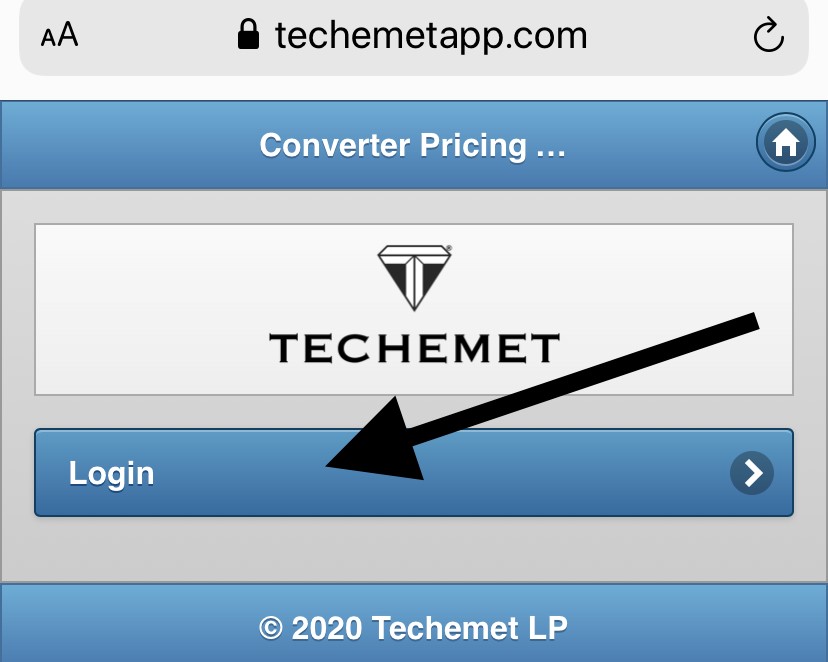
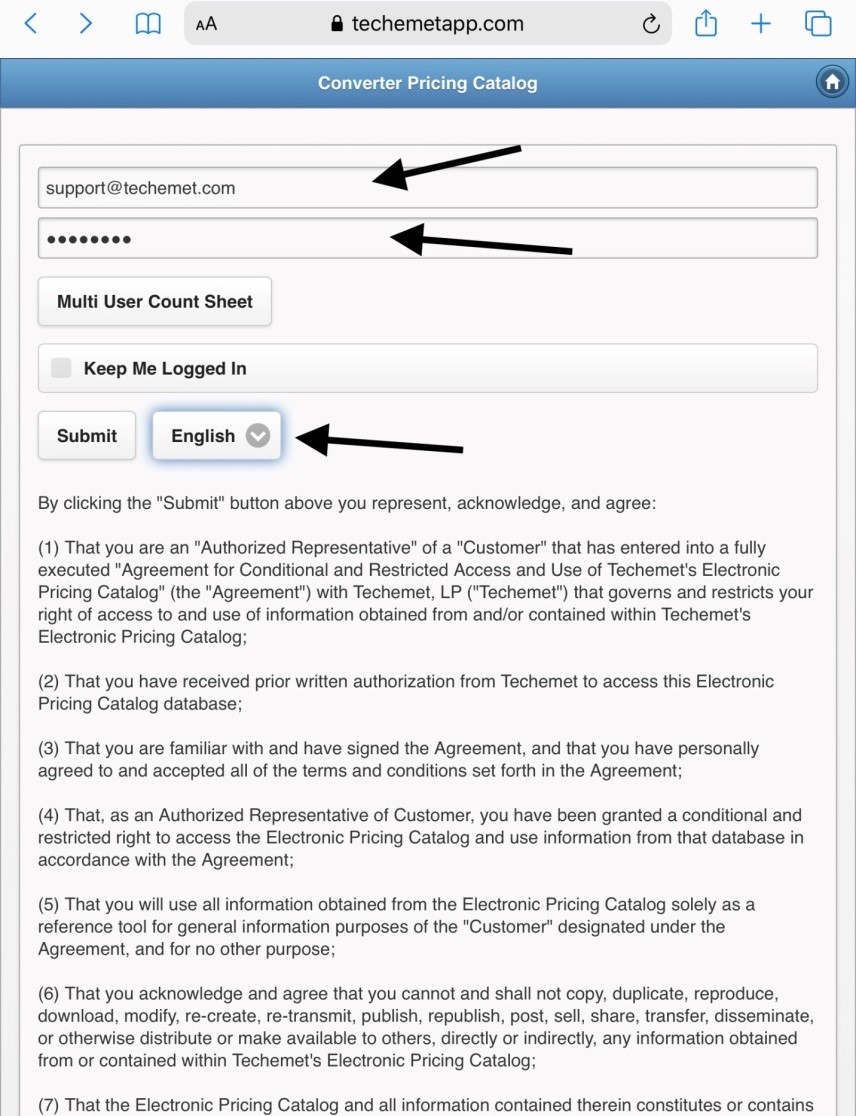
Type in the Login (Email address) and Password. This is the same email address and password that was entered when you registered as a user. The App is available in a total of 11 languages.
To select a language other than English, tap on the down arrow next to English and select your preferred language.
Read the terms and conditions and tap Submit.
If a location pop-up screen appears, select Allow.
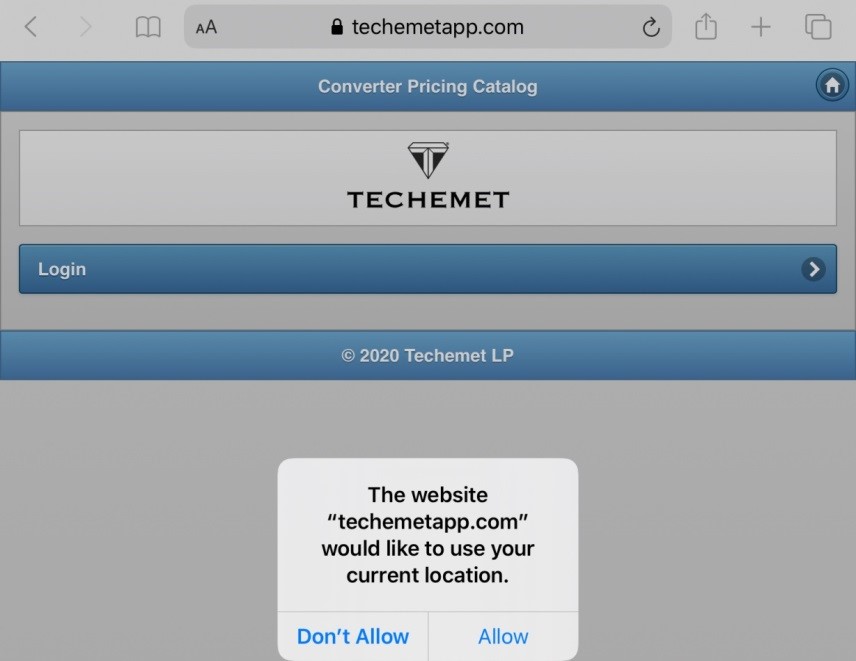
The Electronic Record and Signature Disclosure screen appears.
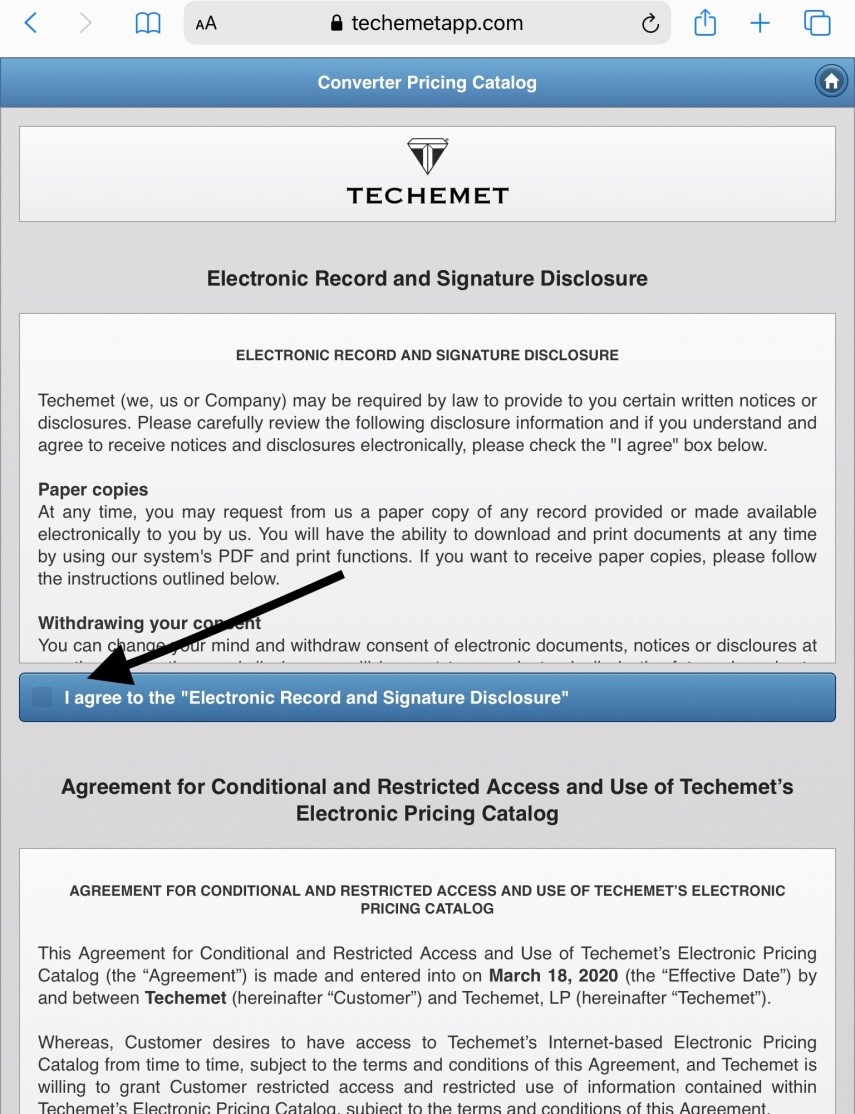
Tap to agree to the Electronic Record and Signature Disclosure.
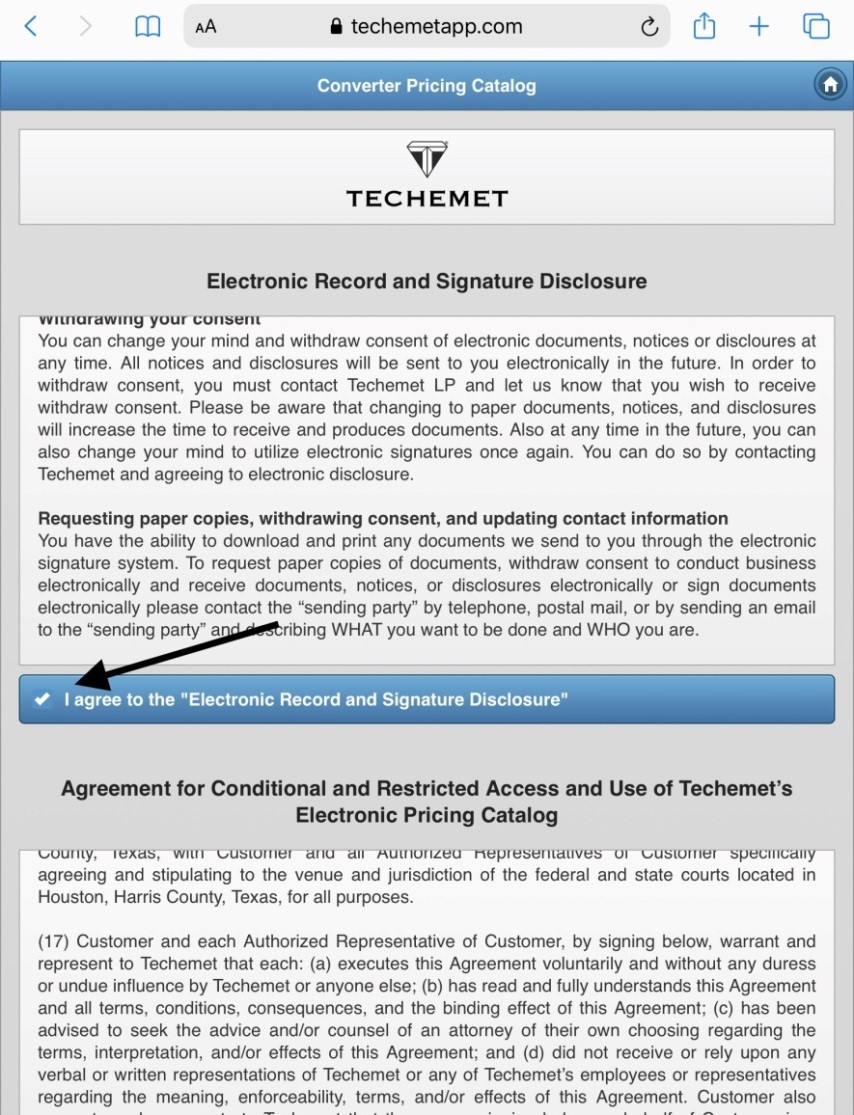
Scroll up to view the Agreement for Conditional and Restricted Access and Use of Techemet’s Electronic Pricing Catalog.
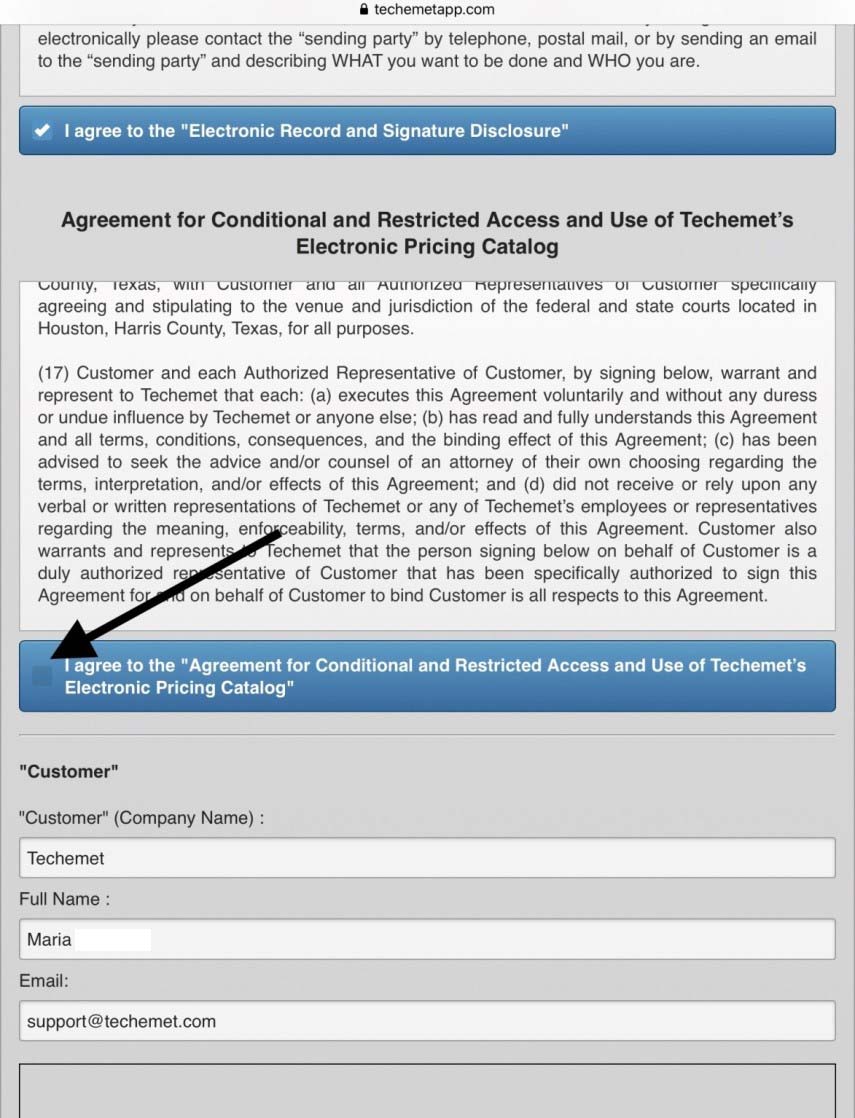
Tap to agree to the Agreement for Conditional and Restricted Access and Use of Techemet’s Electronic Pricing Catalog.
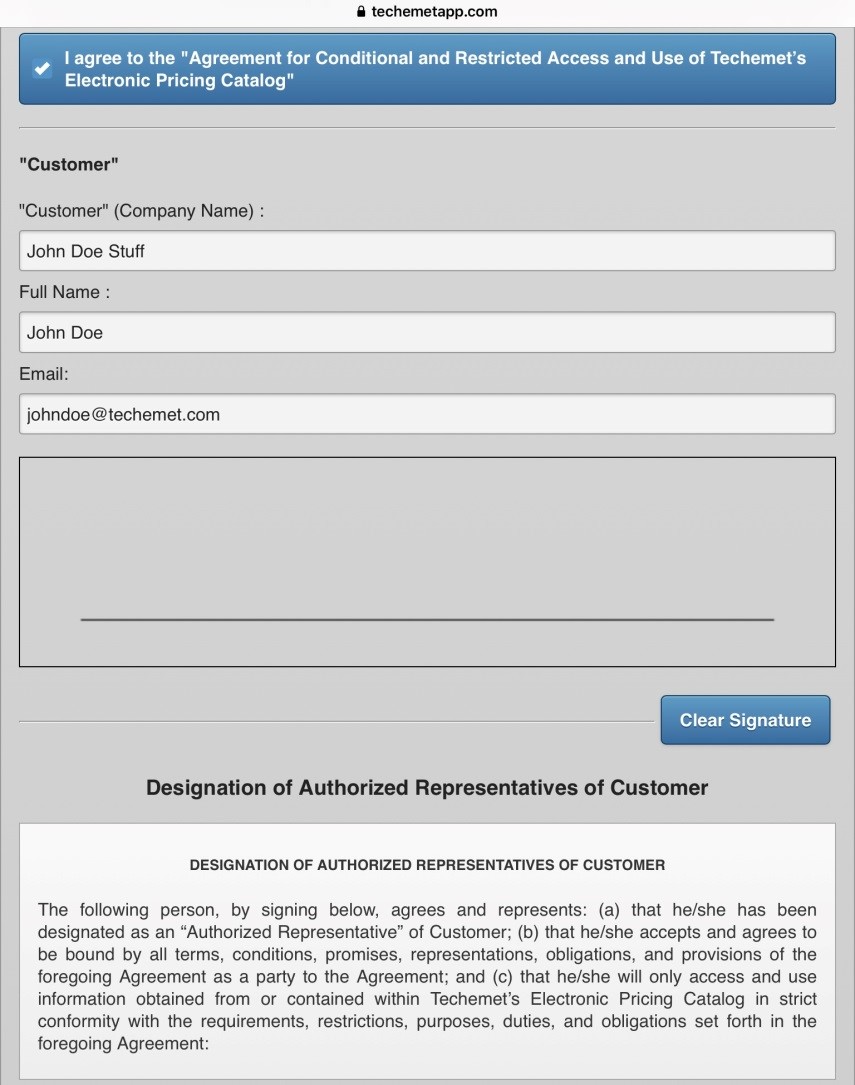
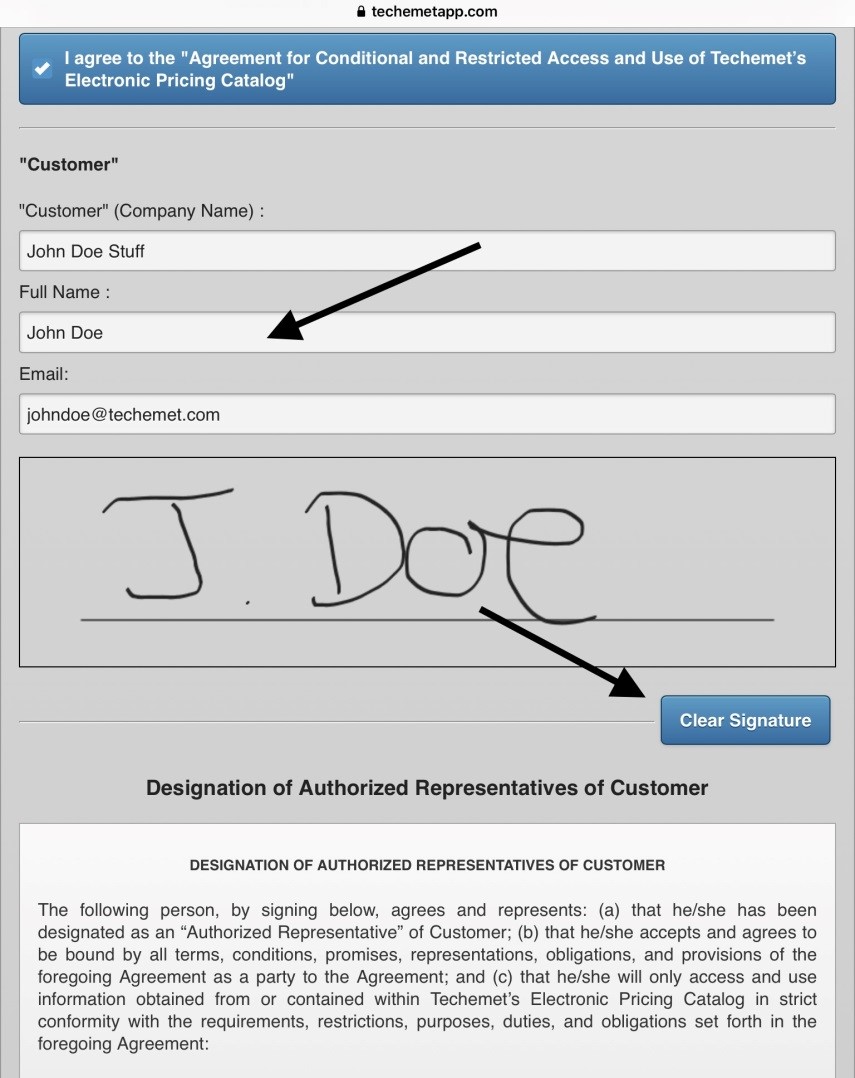
Sign in the signature box, using your finger.
Use the Clear Signature field to erase and re-do the signature if needed.
Scroll up to get to the end of the document.
Hit Submit.
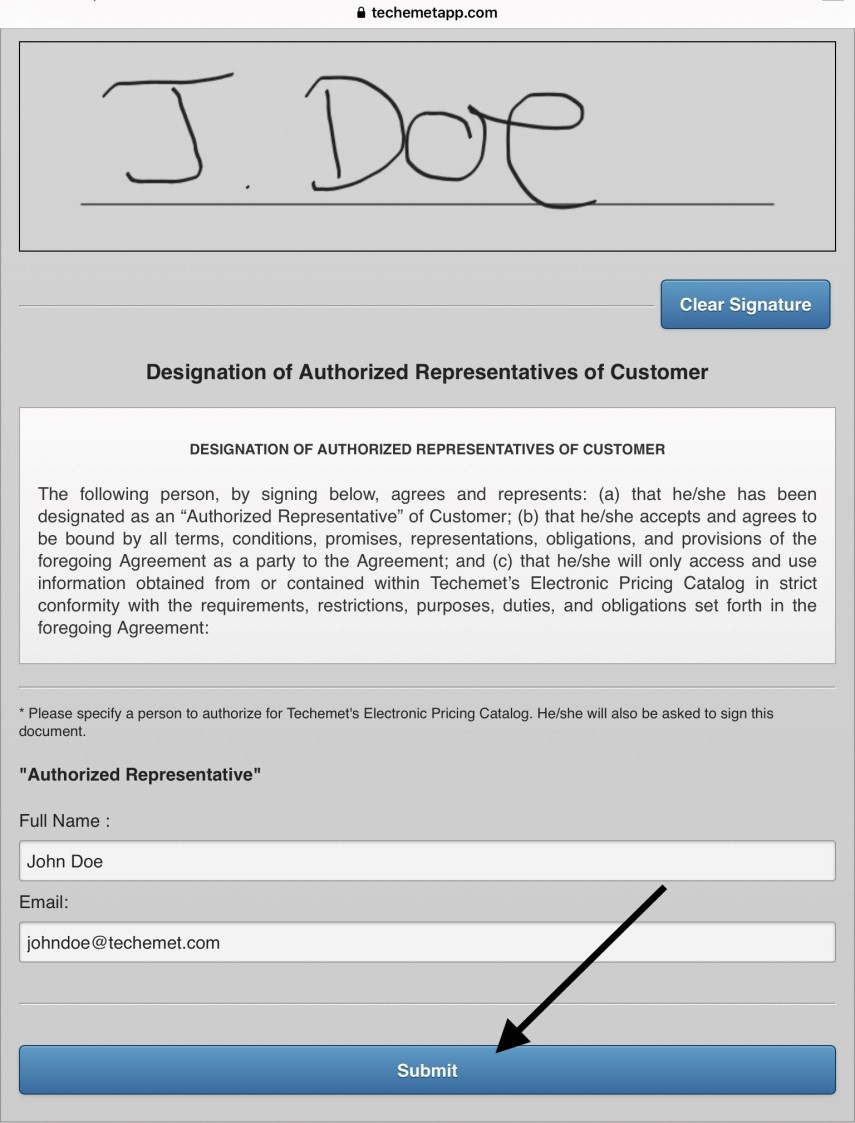
The following screen appears.
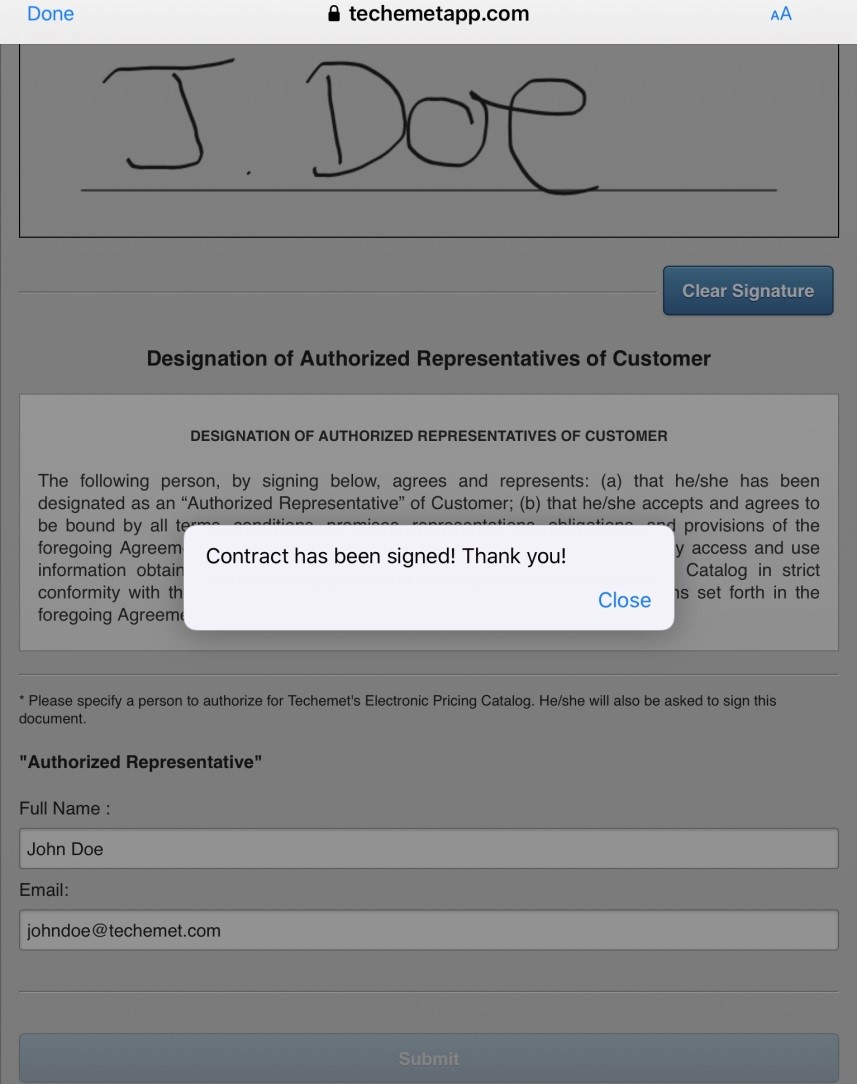
Tap Done.
A copy of the contract that was agreed to, is emailed to the email address associated with the account. The acceptance of the contract and agreement that was done above is only done once, at the time when you first log in to the account. Once this is done, the log in procedure will be as described below.
The login screen appears.
Log in with the email address and password associated with the account.
You are now able to access the app.
Location Services
The following pop-up screen may also appear.
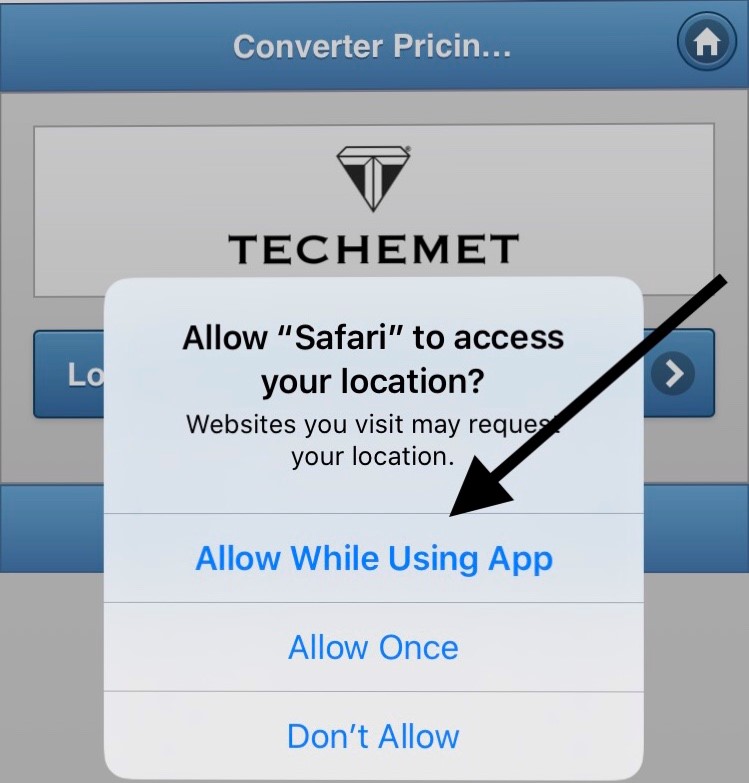
Tap “Allow While Using App”.
The app requires location services to be enabled. To prevent this pop up screen from appearing in future, do the following:
1. Go to Settings on your device.
2. Search for Privacy by typing “Privacy” in the search bar at the top of the screen.
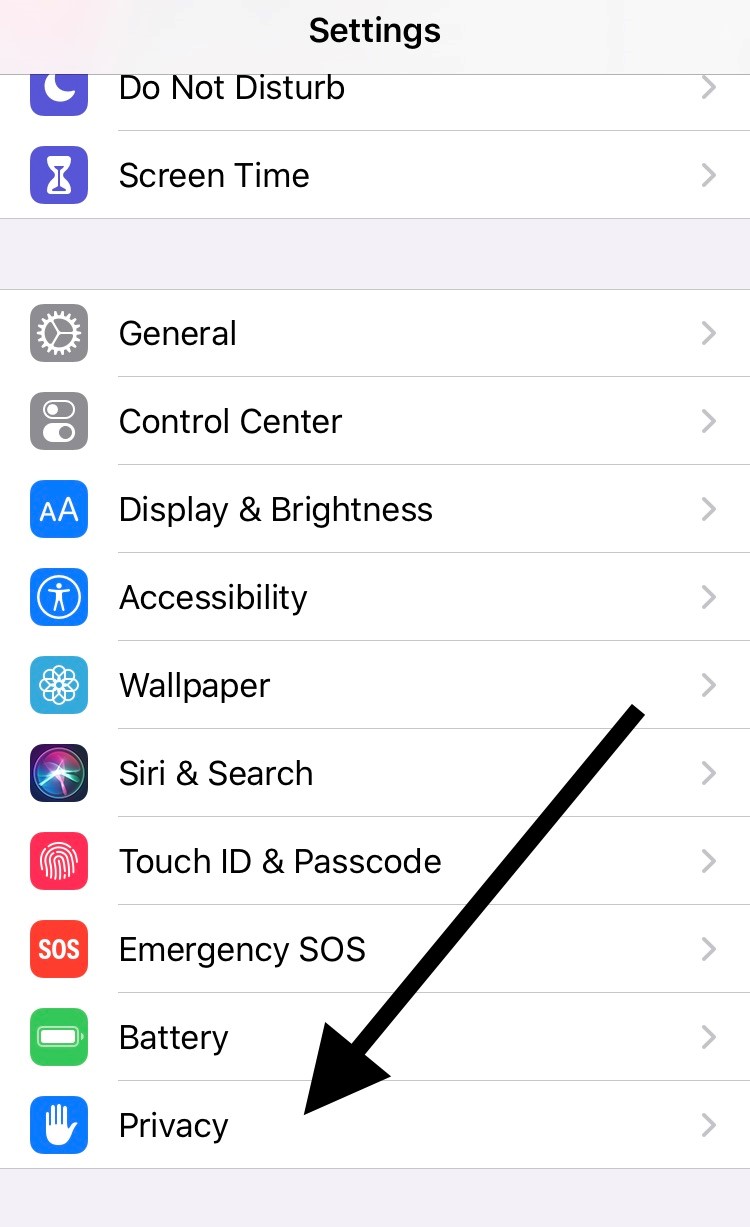
3. Tap on Privacy. The Privacy screen appears.
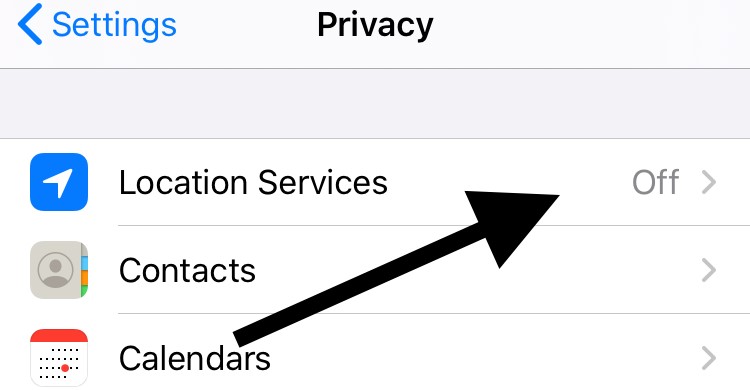
4. Location Services are off, which is why the pop-up window appeared on the log in screen.
5. Tap on Location Services. The Location Services screen appears. Location Services are off. Tap on the button to switch Location Services on.
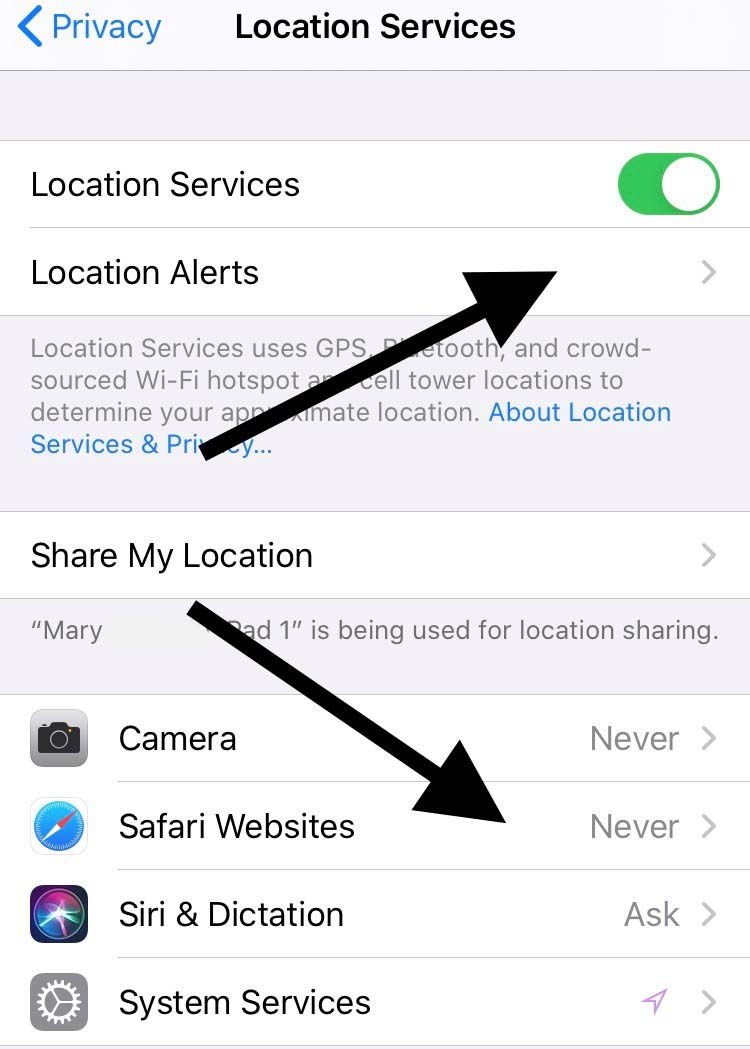
6. Location Services are now on. It is also necessary to switch on Location Services for Safari. In the example above, the Location for Safari Websites, is set to never. Tap on that field to enable Location Services.
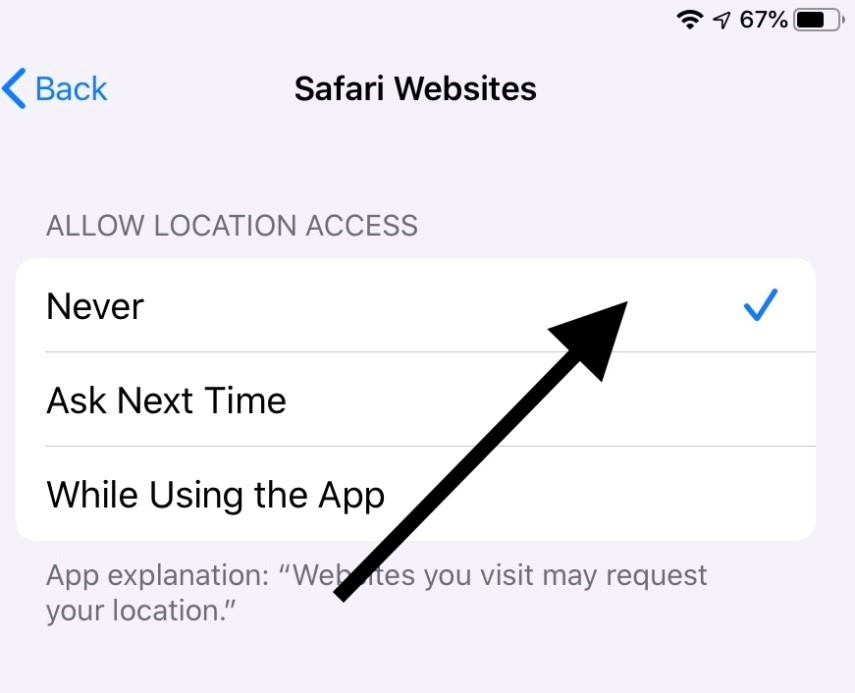
7. Tap on “While Using the App” to enable location services for Safari.
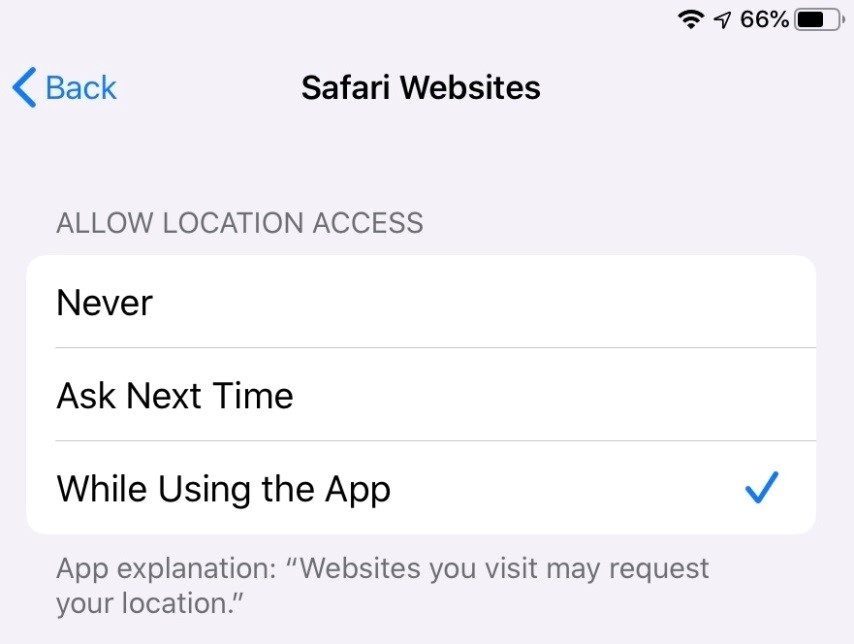
Location Services are no enabled.
To continue signing in to the app, go back to Safari.
Multiple Web Browsers
The app only allows one browser per user, to be open at a time.
If the “Unauthorized Browser/Device” window appears, tap on the “Tap/Click here to request an authorization code” field.
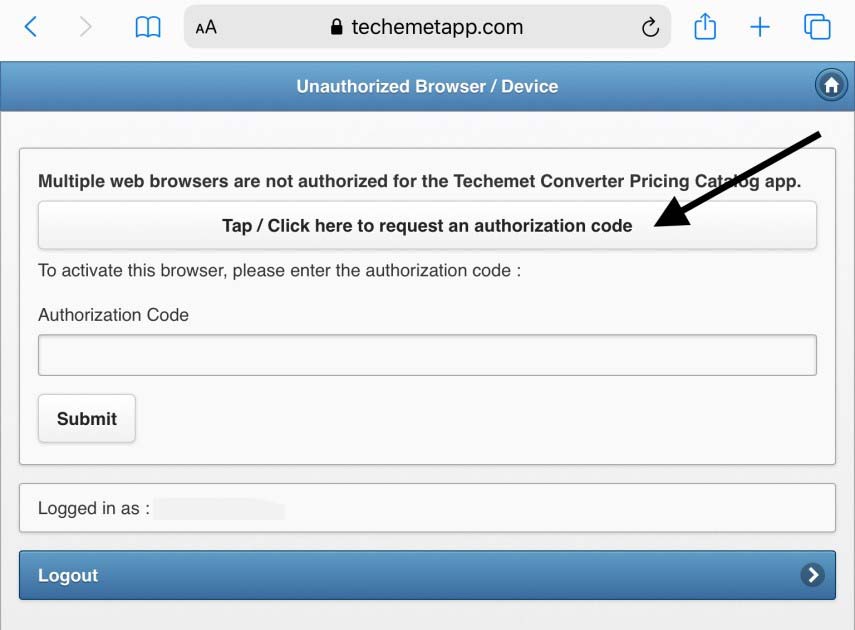
Check the email account associated with this account for the authorization code.
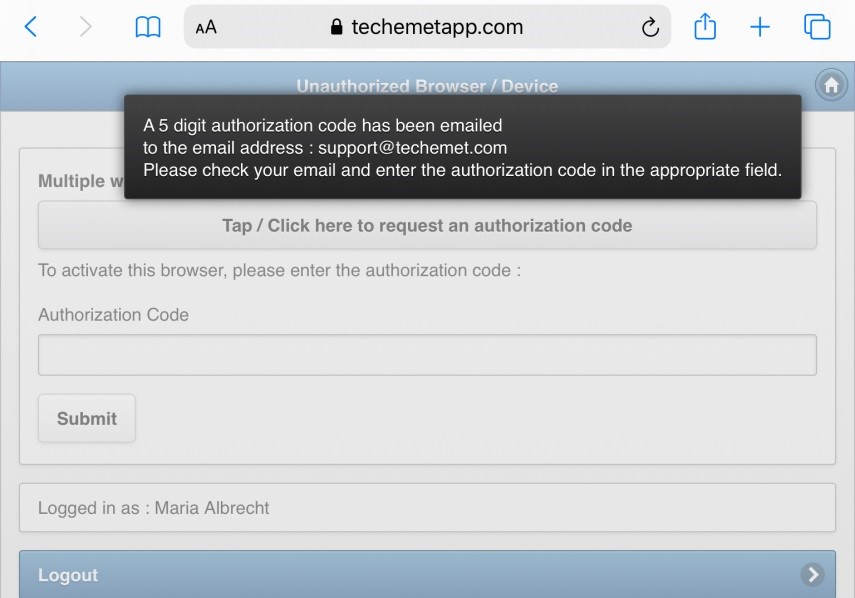
Type the code that was sent to the email address in the “Authorization Code” field.
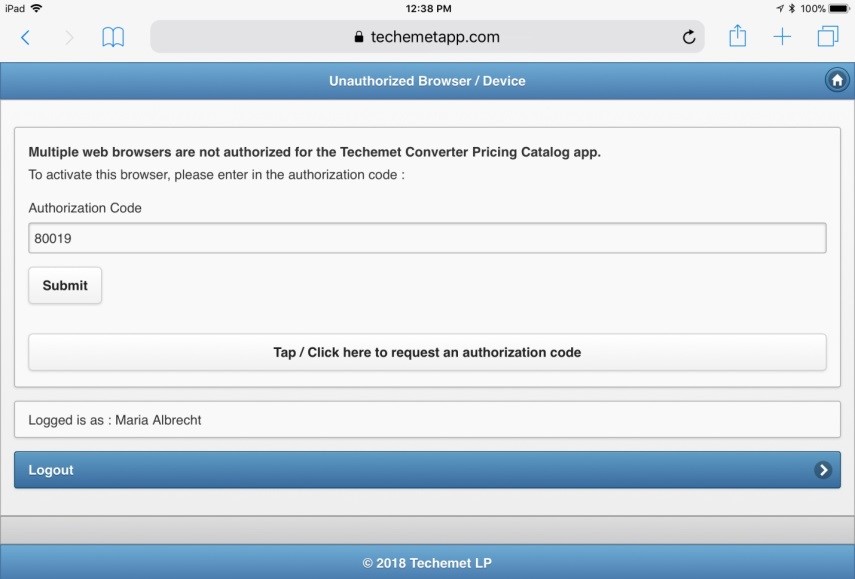
Tap Submit.
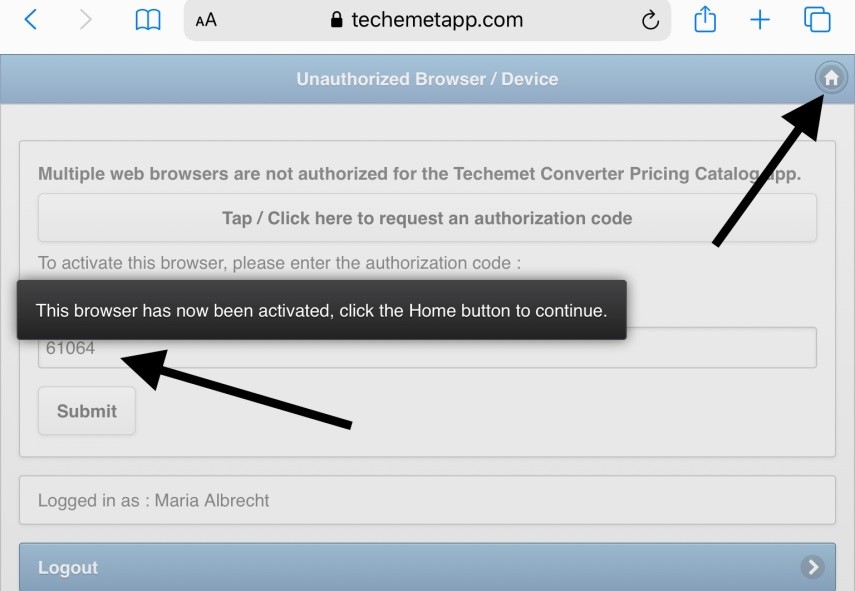
The app is now available for use.
Tap the Home button.
The Main Menu appears.
How To Create A Shortcut
Go to techemetapp.com on a Safari browser.
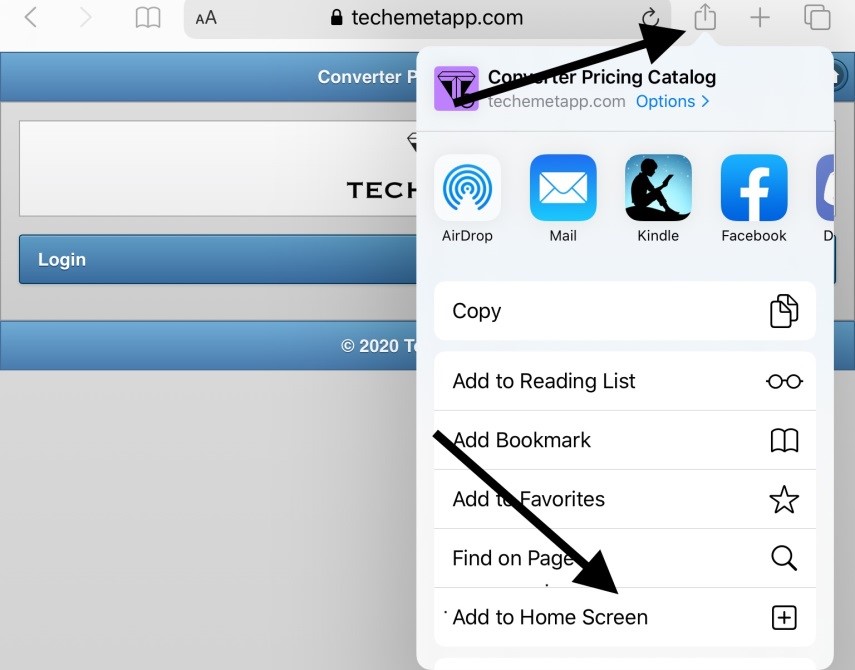
Tap on the Share icon.
A pop-up screen appears.
Tap on the + (Add to Home Screen) icon. If it is not visible on the pop-up screen scroll left until the icon appears.
The “Add to Home” screen appears.
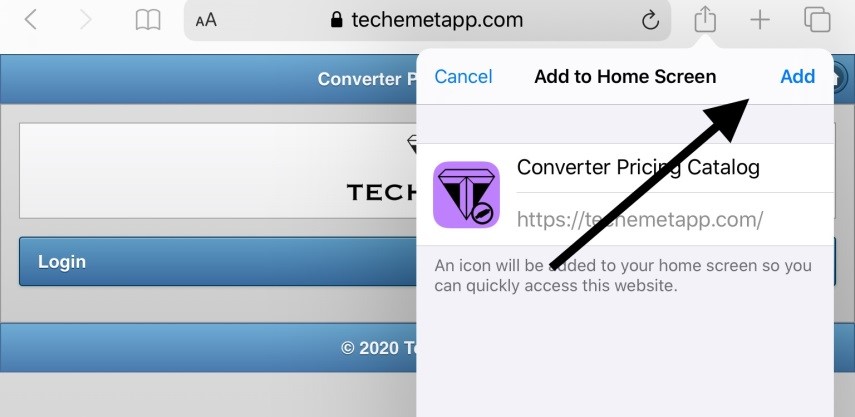
Tap “Add” on the top right hand side of the screen.
The app icon now appears on the home screen of the device being used.
Cookies
If, after logging on to the app, you try to perform a function but are returned to the log in screen, this could be a cookie issue.
Select settings from the home screen.
Type Safari in the search bar

The Safari page appears.
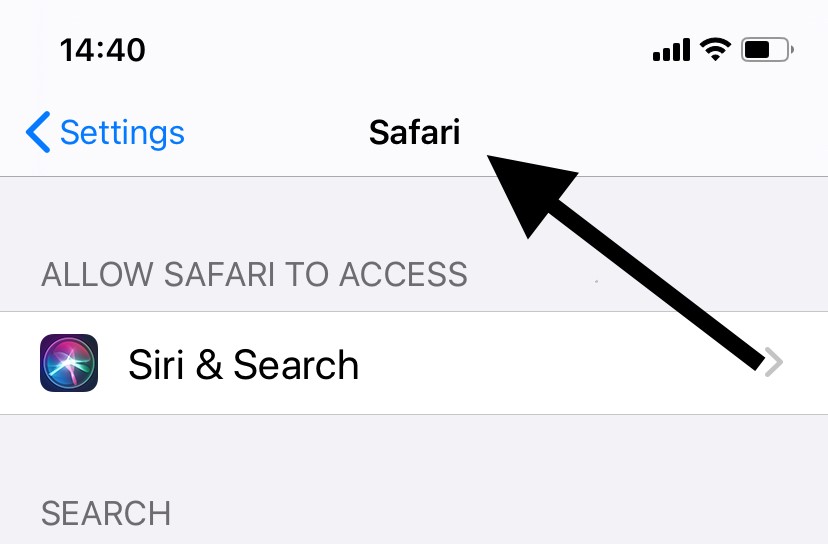
Scroll to the Privacy & Security section of the page.
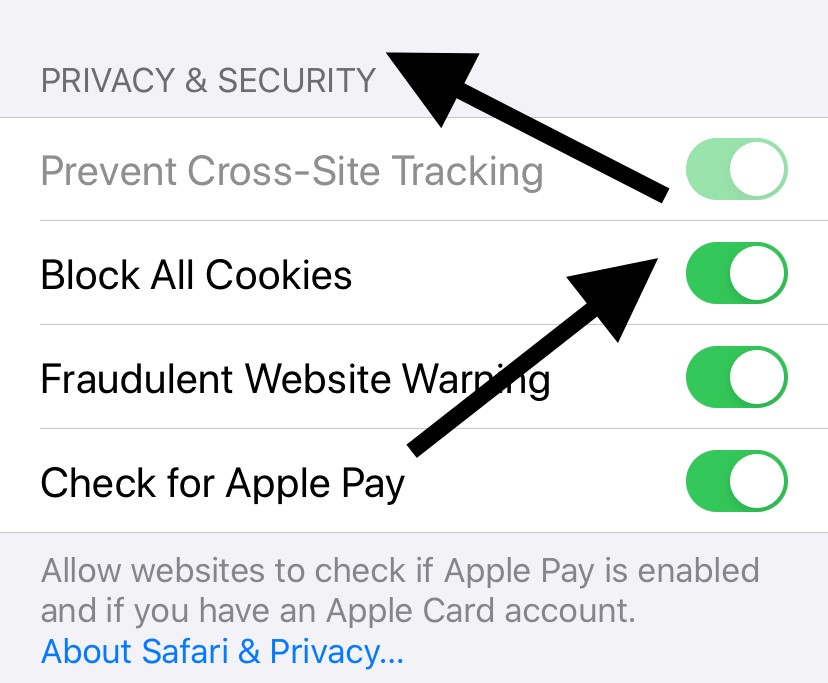
In this example, Block All Cookies has been selected. Cookies track whether a user is logged in and under what name. They also streamline login information so users don't have to remember site passwords. To be able to log in and effectively use the Techemetapp web page as well as other web pages, Block All Cookies needs to be disabled.
Tap the button to gray out the Block All Cookies feature.
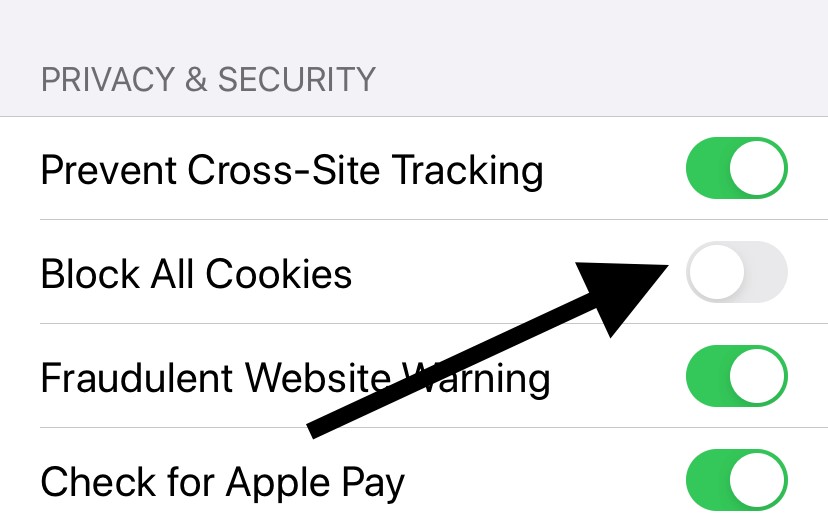
Start the log in process again.