User Settings
This is where the user profile/settings are updated.
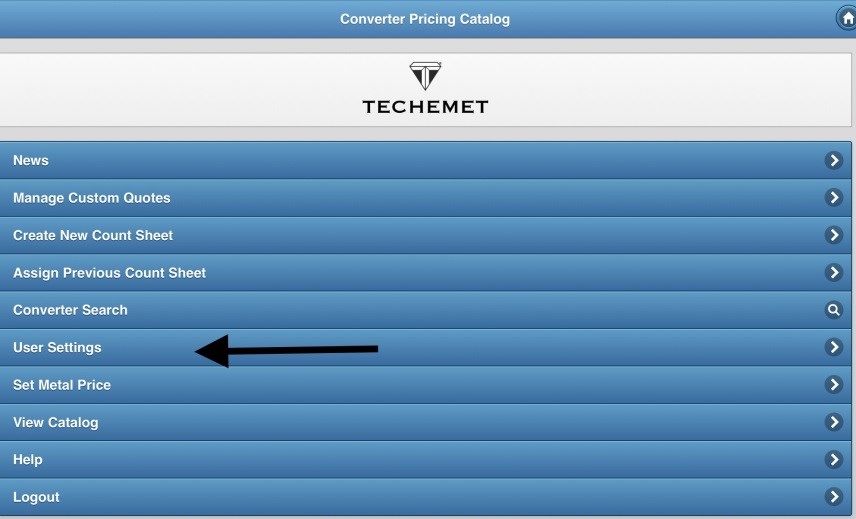
To access this page:
• Log on to techemetapp.com
• Tap on User Settings.
The User Settings page appears.
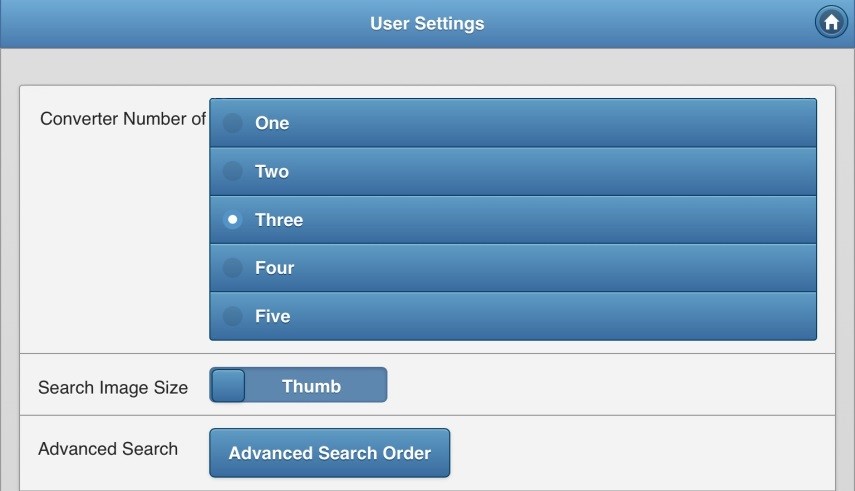
Converter Number of Columns
This is the number of columns that will display when you do a search. You can choose 1 – 5 columns. It is recommended that for phones and smaller tablets the setting be 1 or 2 columns and for larger tablets and desktops, the setting be 3-5 columns.
Search Image Size
The options are Thumb or Full. The images that are displayed either display as a thumbnail which is a lower resolution or as a full image (higher resolution). One of the deciding factors is whether you have slow or fast internet. For slow internet select thumb.
Advanced Search Order
This enables the user to change the order in which the search criteria appear on the Advanced Search page. To set the criteria:
Tap on Advanced Search Order.
The Advanced Search Order page appears.

There are 25 search criteria.
To make the page more efficient, it is possible to move the criteria around and to decide which search criteria appear on the page.
The Reset Sort Order button enables the user to reset the order of display to the default order.
The search criteria can be enabled or disabled as per the user’s needs. To disable/enable each field/line item, tap on the slider.
The order that the search criteria appear can be changed by sliding/dragging the criteria up or down as indicated by the up and down arrows.
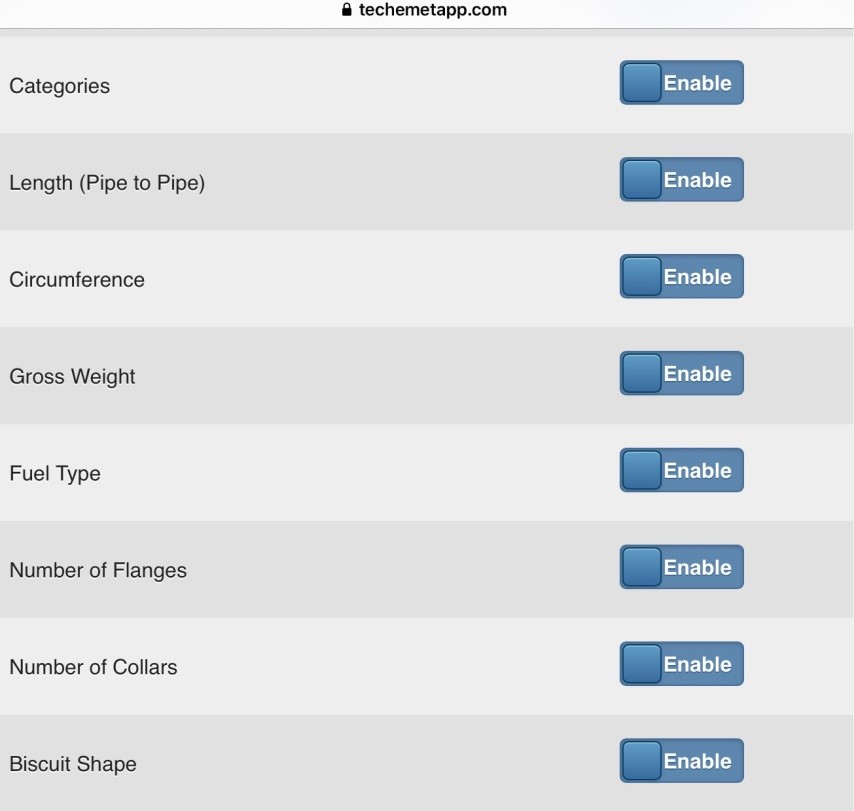
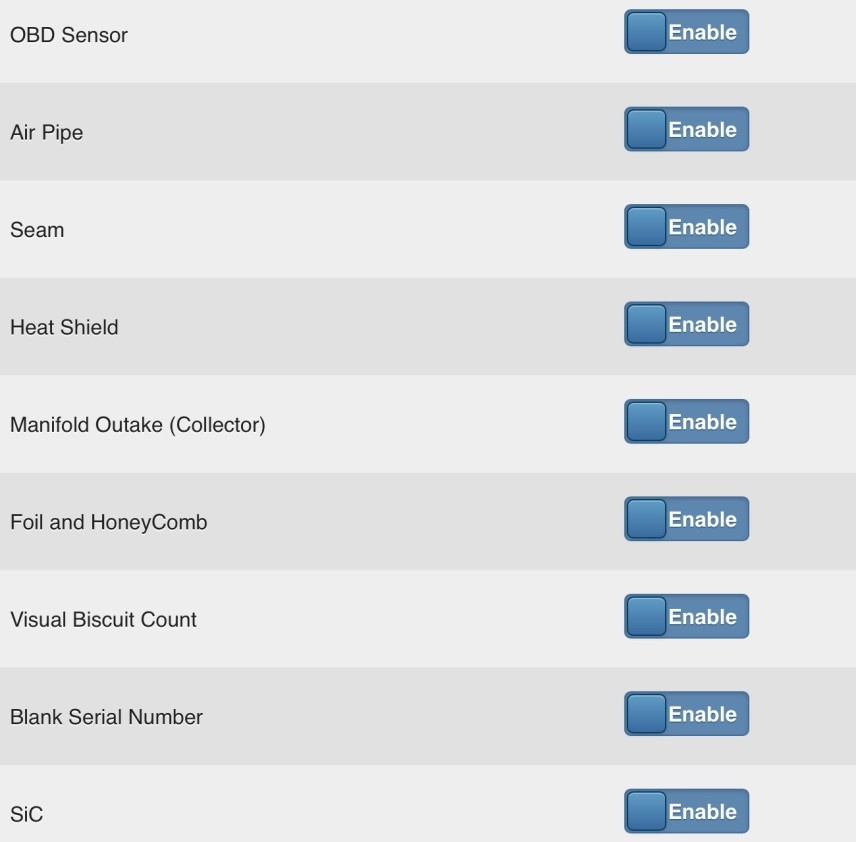
For an explanation of the 25 search criteria please refer to the Advanced Search help file under the Help section.

Other Image Size
This refers to the other images related to the search. The options are Thumb or Full. The images that are displayed either display as a thumbnail which is a lower resolution or as a full image (higher resolution). One of the deciding factors is whether you have slow or fast internet. For slow internet select thumb.
Primary Image Order
The Primary Image is the first image that appears when a search is done.
To change the Primary Image order, click on the button next to the “Primary Image Order” field to switch between “First “and “Last”.
If “First” is chosen, the primary image that is displayed when a search is conducted will be the first image to display when the photo button is selected.
For example: If there are 5 images, the Primary Image is number 1, followed by 2,3,4 and 5. If “First” is chosen, the images will display in this order – 1,2,3,4,5
If “Last” is chosen, the primary image will display last. So the order would be 5,4,3,2,1
Units Per Page
This is the maximum number of units per page that will display after a search. For slower internet or if you are using a phone, select a smaller number and if using an Ipad and/or you have faster internet, select a larger number to display.
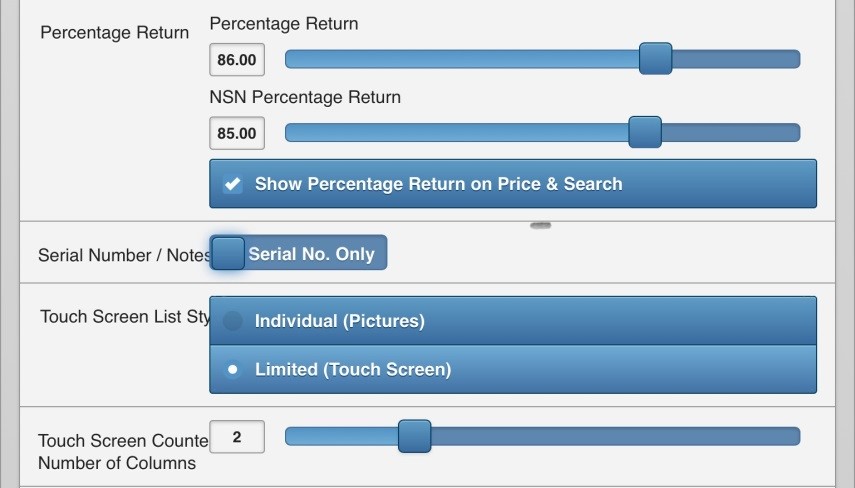
Percentage Return
The Percentage Return and NSN (Non Serial Number) Percentage Return can be set here. To set the figure, move the slide back and forth. Please refer to Converter Search help file under the Help section for more information on Percentage Return.
Show Percentage Return on Price & Search
If this is unchecked the user cannot change the percentage return on the Converter Search screen and the percentage return figure will also not be shown. This can be set/controlled by the Techemet buyer or the Controller of the account.
Serial Number/Notes Search
The Serial Number/Notes Search feature allows the user to set the profile to search either by Serial Number only or by Serial Number AND Converter Markings Notes.
Example 1: If you are searching using 123abc as the search criteria, and the user’s profile is set to Serial Number only, the search will return results where the Serial Number matches partly or exactly to what was searched. This search will not look at any data in the Converter Markings Notes field.
Example 2: If you are searching using 123abc and the user’s profile is set to Notes/Serial Number, the search will return results where the Serial Number and/or the Converter Markings Notes field matches partly or exactly to what was searched. This search might return a result where the serial number field is blank and the Converter Markings Notes field is 123abc.
Selecting the Serial/Notes option will yield higher results.
Touch Screen List Style
Individual – shows pictures, converter details and pricing
Limited – shows only the converter serial number
Touch Screen Counter Number Of Columns
This refers to the number of columns that are displayed when you tap on heart (Quicklist) or tag (Popular List). It is DIRECTLY linked to choosing the Limited option above and does not affect the Individual option.

Fill Behaviour
When adding a converter to a count sheet it is necessary to indicate the size of the converter. There are 3 options:
1. Default to Full – The majority of converters purchased fall into this category.
2. Always Ask – this forces the user to select the size of the converter for every converter added. This is suggested for users who are new to the system or less experienced in the field of converter buying.
3. Remember Last – this remembers the size of the last converter added. This setting is suitable for more experienced buyer who probably sorts the material before adding it to the countsheet.
Build My Quick List
Slide to select on or off. If it is on, converters will be added to your quicklist as you search. This quicklist allows you to find items that you see frequently, in a more efficient manner.
Submit Password Reset
Tap this to reset your password.