Techemet App Setup IOS Chrome Browser
Navigate to techemetapp.com using the Chrome app.
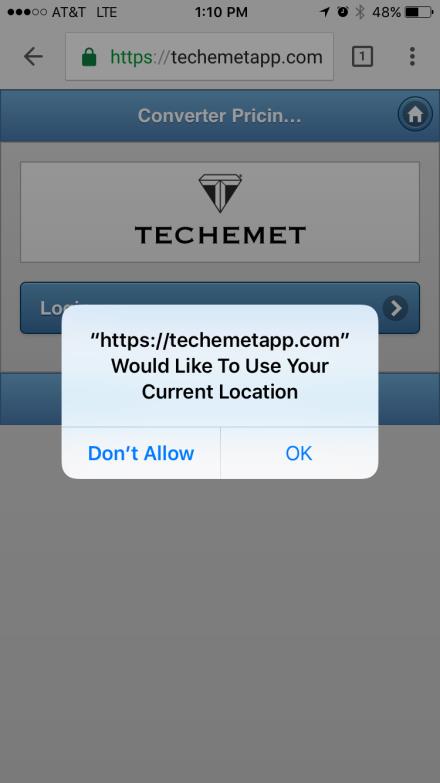
You will see a pop-up to request your current location you will need to accept this by selecting ok. If you do not receive this request follow you will need to enable location services on your iPhone. I have discusses how to do this at the end of this document.
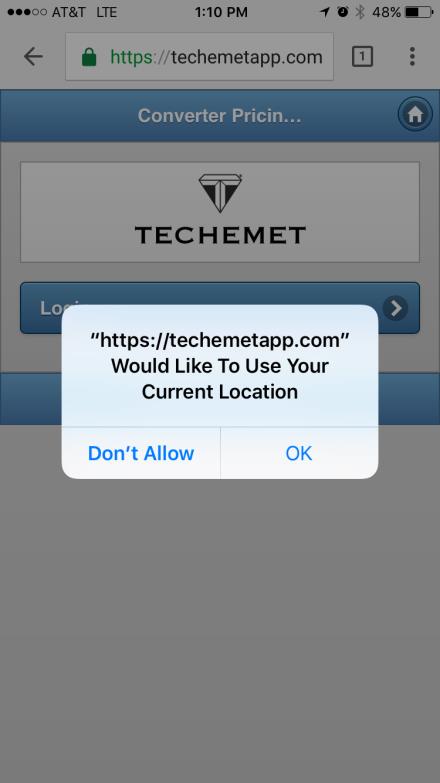
You will see a pop-up to request your current location you will need to accept this by selecting ok.
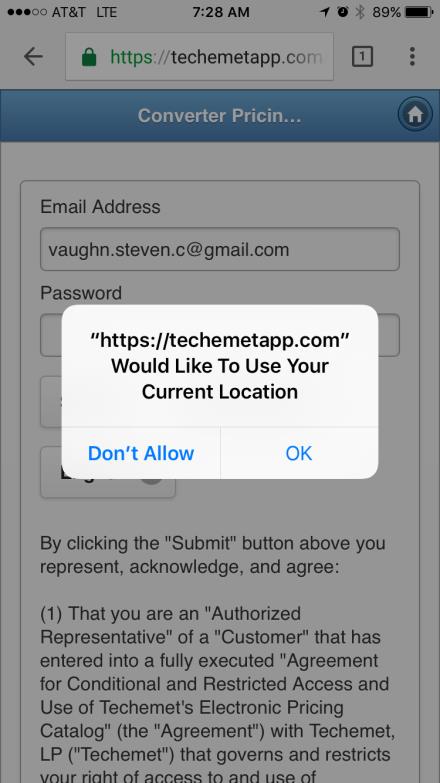
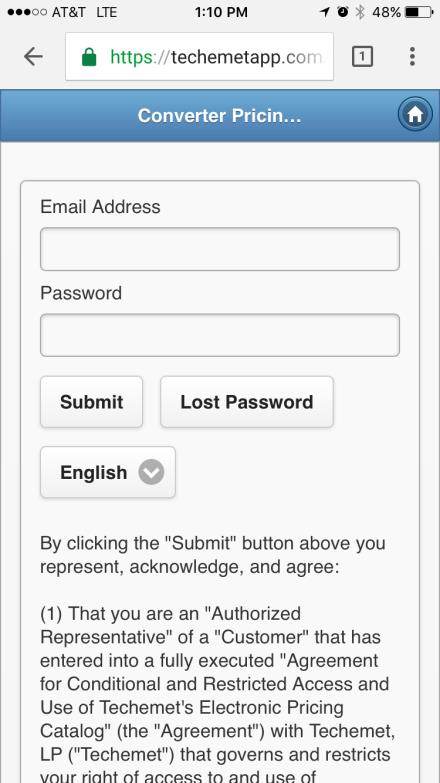
Please input your login information.
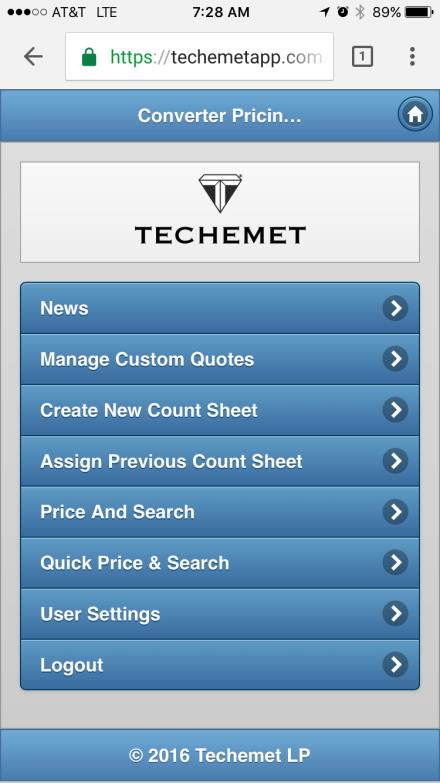
Select Price and Search.
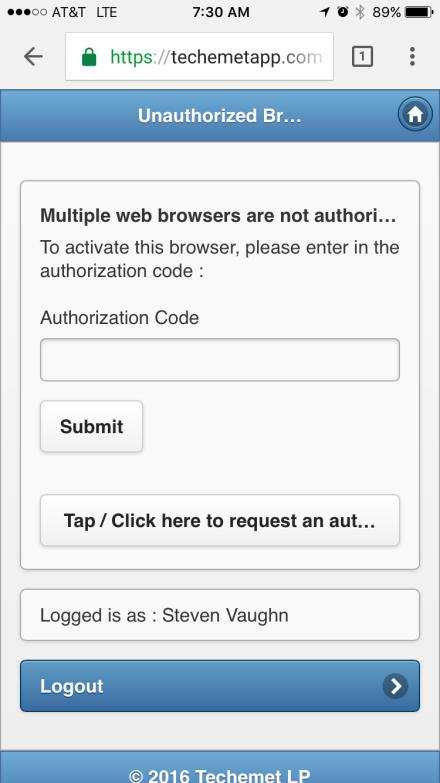
If you have not authorized this Browser yet you will receive this prompt. To authorize please request an email to be sent with the Auth code. If you have authorized the Browser and receive this prompt you have either cleared your cookies by deleting your web history or have authorized one or more browsers over your allotted amount.
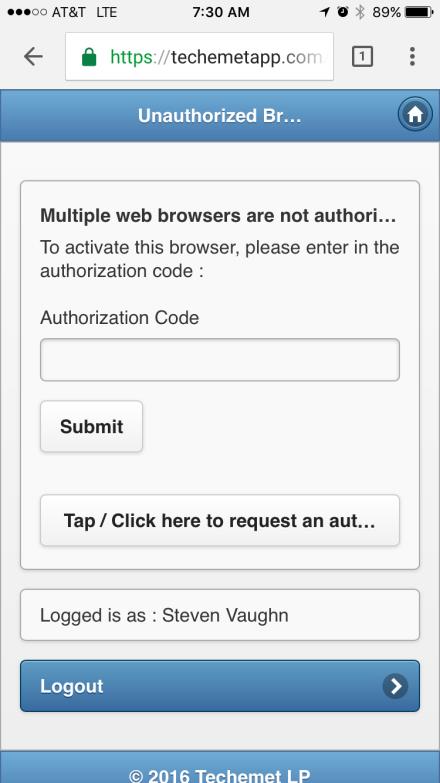
Once you have received the code in your email you can copy it and input it into your input box and submit it. Once submitted you will have authorized this Browser. If you do not see the email in your account please check that you are logged into the correct account. Your email account will be the same as the one you use to log into the app. If you are logged into the correct email and still to not see the email, your email provider may have marked it as Junk or Spam. You will need to check these folders.
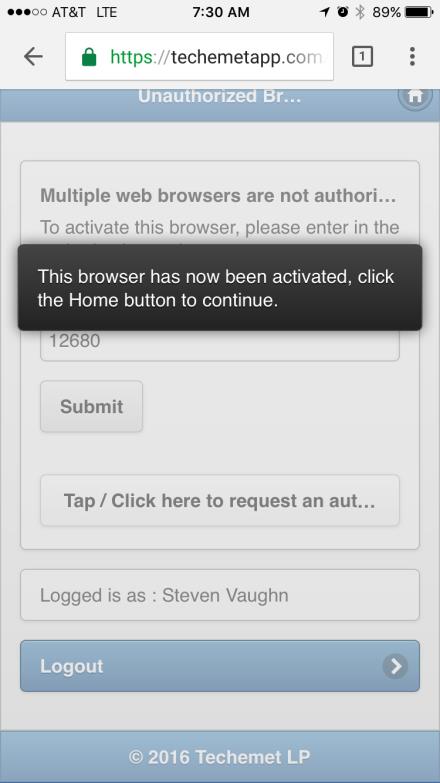
You have submitted the auth. code you have now authorized your app. You can now select the home button and return to the main page.
Now that you are on the main page you may select the Price and Search. You should be able to search and use the app now. If you receive a location error this means that you either did not allow the app to access your location when it asked or have not allowed location services for Chrome. I got into how to fix this below in the trouble shooting section.

Troubleshooting
Location Services Issue 1
Symptoms: You have authorized your browser but fail to use the app due to recieving the location services error. You did not receive any of the location services prompts.
Causes:You have not allowed location services on the application.
Solutions:Allow location services and then restart the Chrome app Process
Go to Settings.
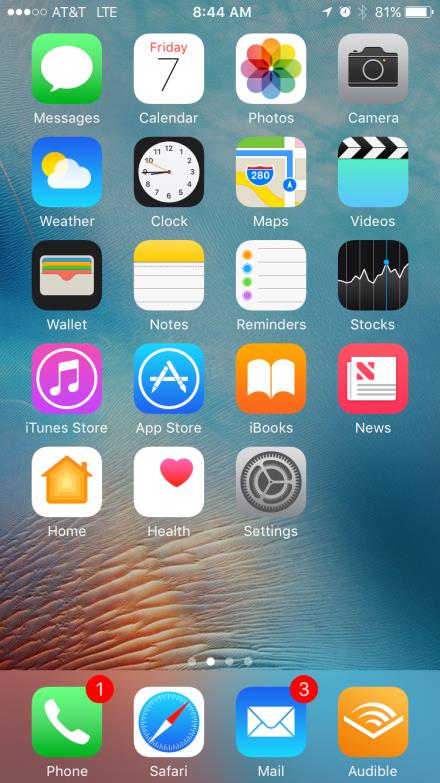
Locate Privacy
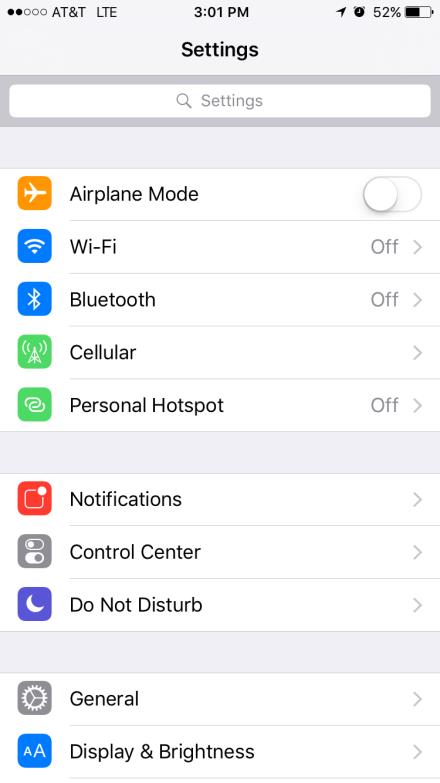
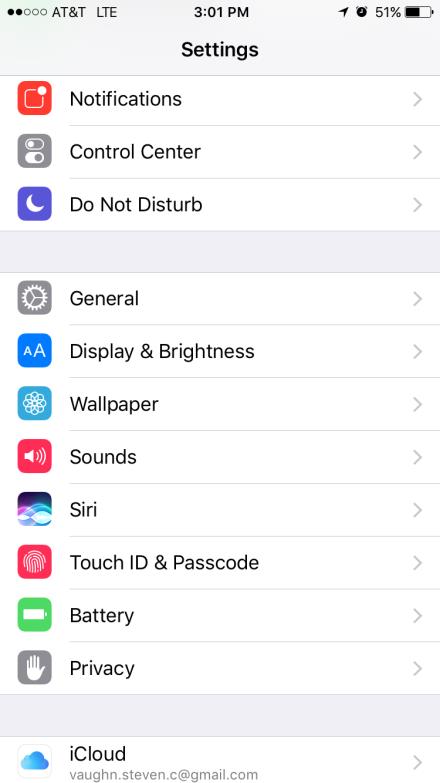
Locate Location Services.

If off turn location services on.
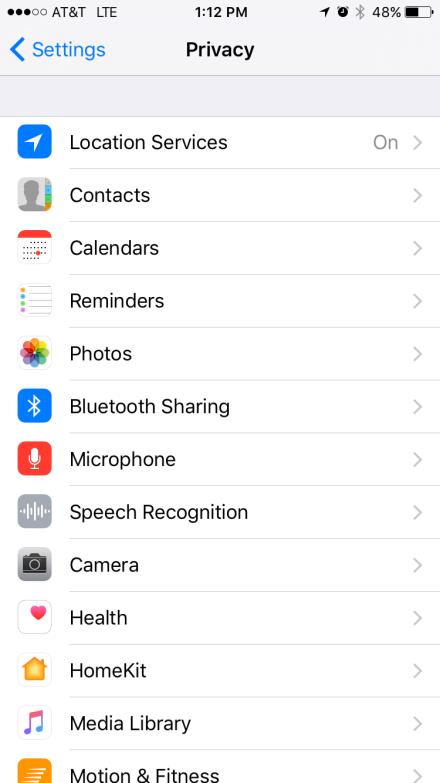
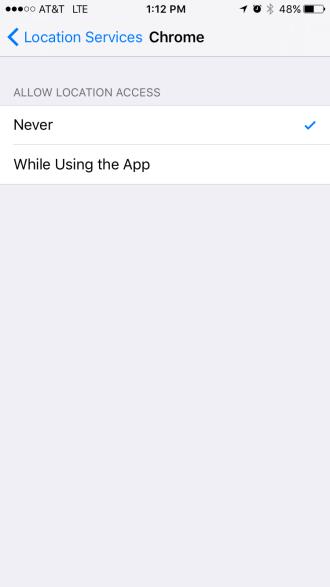
Now find the Chrome apppcation.
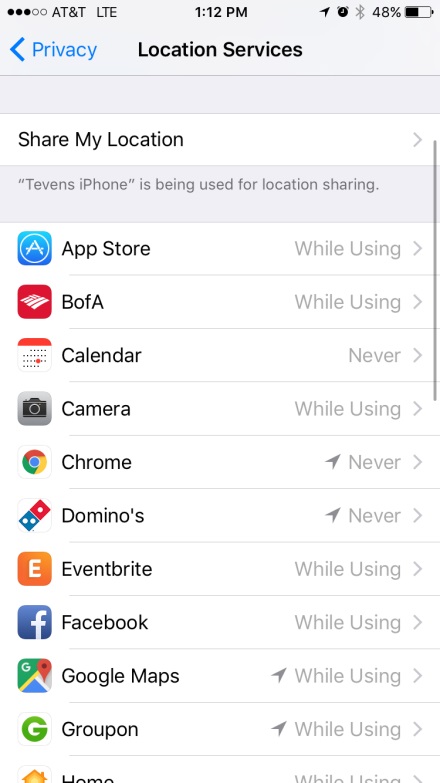
Set the Chrome apppcation to while using the app.


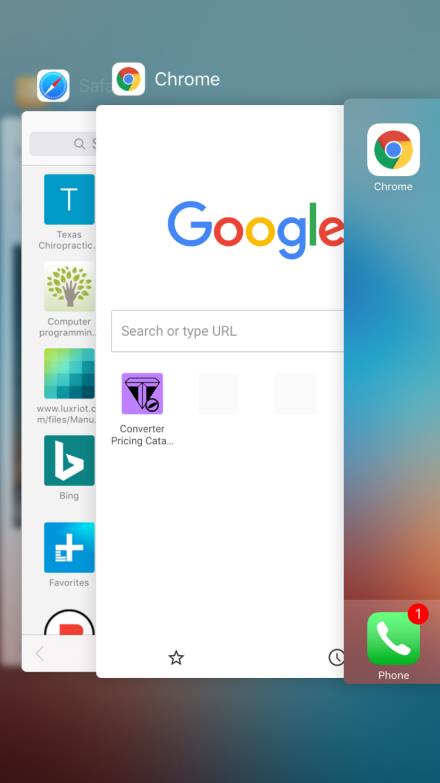
This should fix your issue now restart the chrome apppcation. Double press the home button then swipe upwards to end the app.
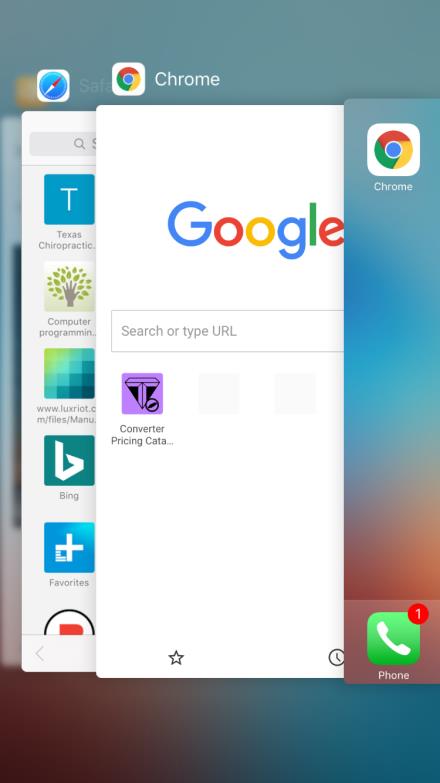
Start the Chrome app Process Step 1 and follow the steps as laid out in this document.
Location Services Issue
Symptoms: You have authorized your browser but fail to use the app due to receiving the location services error.
Causes:You did not select Ok when the location requests pop up requested your location.
Solutions:You must allow the location request. You there are two ways to fix this if you are logged into chrome on your phone you can fix this very quickly by accessing your settings on a pc and changing them there. If you are not logged into chrome you must perform a more in-depth process.
Solution 1
Go to your PC and open the Chrome browser and log into your Chome Account.

Go to techemetapp.com

Clear these settings for future visits.
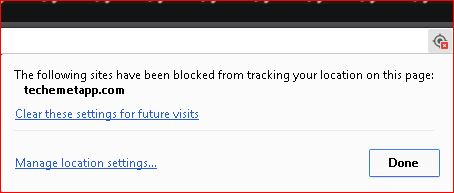
Head to techemetapp.com and start with step 1 of the chrome app process.
Make sure to select Ok this time.
Solution 2