Multi User Count Sheet
This function in the app allows a user to share a Count Sheet. This allows other users to
add converters to that Count Sheet. This is helpful when:
- multiple people are buying from the same seller
- and all the buyers need to add to the same Count Sheet.
Creator Of Multi User Count Sheet
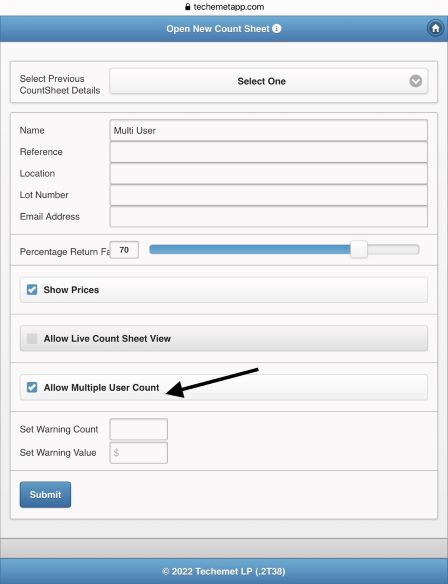
1. Create a Count Sheet OR you can assign a previously created count sheet. Please refer to the Create New Count Sheet document under the Help section. When creating the Count Sheet, tap the Allow Multiple User Count to allow multiple users to add converters to this Count Sheet.
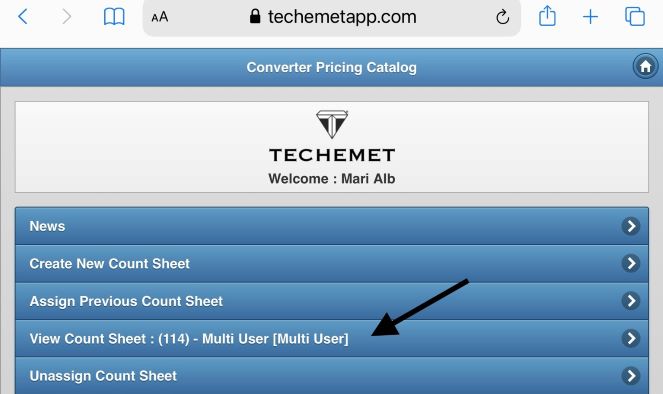
2. Once the Count Sheet is created, it appears on the Main Menu in the View Count Sheet field. Take note of the number of the Count Sheet as this information will be necessary when allocating the Count Sheet to other user(s). In this example the Count Sheet is number 114.
3. Go to User Settings to set up the password for this Count Sheet. The password is shared with the users who will have access to the Count Sheet. The password should be changed once the Count Sheet is completed or the user no longer needs access to it.

4. In this example the password is 9876. Once the password has been set, you are ready to share this information with the user who will have access to the multi user count sheet.
In this example support@techemet.com is giving access to pattyofurniture@techemet.com.
Recipient Of Multi User Count Sheet
The person who the Count Sheet has been shared with, logs in to the app.
In this example Pattyofurniture@techemet.com (the recipient of the Multi User Count Sheet password) logs in as follows:
1. Go to www.techemetapp.com.
2. Enter the login and password for the app.
3. Tap Multi User Count Sheet.
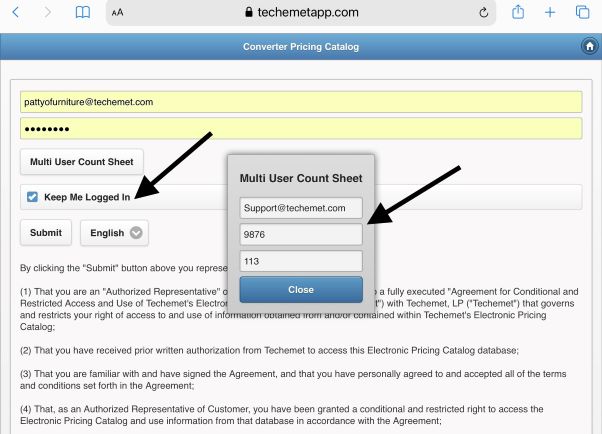
4. Tap the "Keep Me Logged In" field to remaind logged in to the app.
5. A pop up window appears.
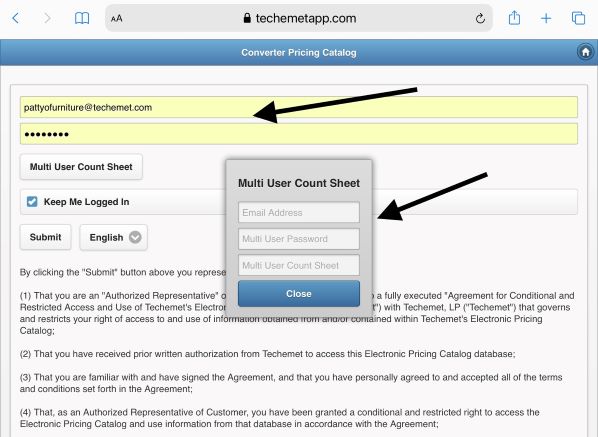 1. Enter the email address of the person who created the Count Sheet.
(support@techemet.com).
1. Enter the email address of the person who created the Count Sheet.
(support@techemet.com).
2. Enter the password they gave you (9876)
This is NOT the same password that you use to log in to the app.
3. Enter the Count Sheet number (113).
4. Tap Close.
5. Tap Submit.
You are now logged in to the Techemet app.
The screen looks a little different as there are only 4 items listed on the menu.
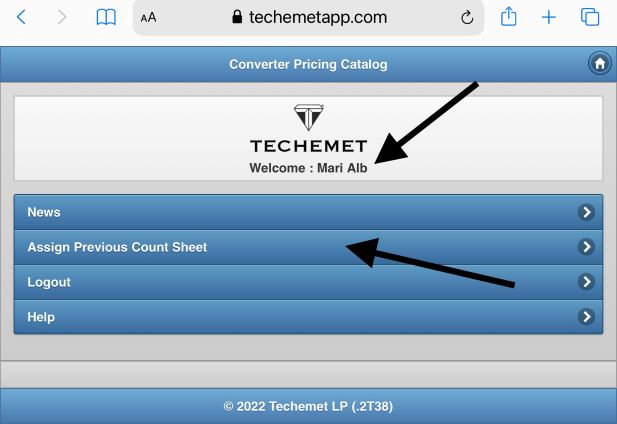
Tap on Assign Previous Count Sheet.
The Open Previous Count Sheet window appears.
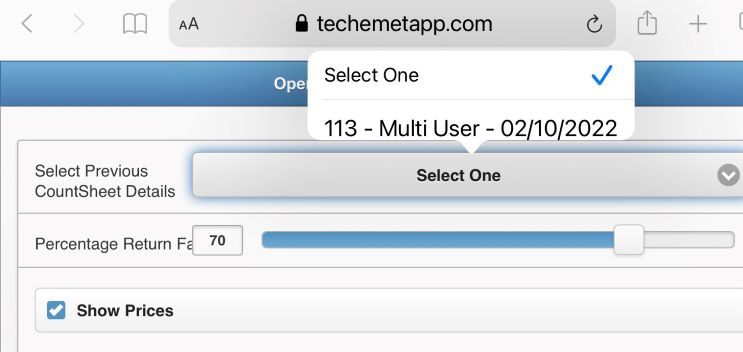
Tap on Select Previous Count Sheet Details.
The count sheet that was shared with you appears.
Tap on the count sheet.
Tap Submit.
The count sheet appears on the main menu.
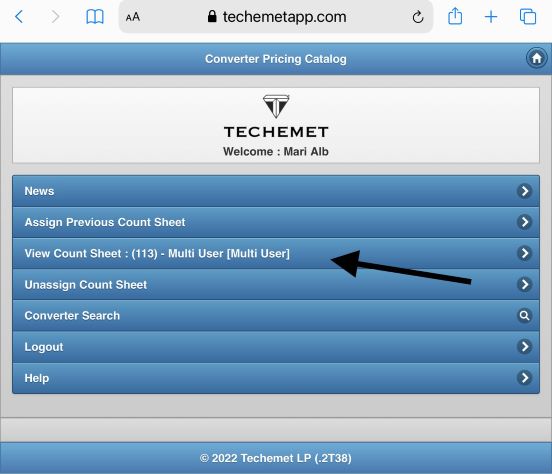 You can add converters to the Count Sheet as discussed in the Create New Count Sheet document
under
the Help section.
You can add converters to the Count Sheet as discussed in the Create New Count Sheet document
under
the Help section.