Build My Quick List
Quick Lists allow you to build and view a list of converters that you search often. You can have Quick Lists in Converter Search, Advanced Search and in “No Serial Number” search (NSN) – if NSN is available to you.
To switch on the Build My Quick List feature, please refer to the User Settings Help file under the Help section.
There are 2 types of Quick Lists in each search:
• My Quick List
• Popular List
The difference between the two is as follows :
My Quick List – the user can add up to 20 units of their choice to the list.
Popular List – this list is auto-generated by selecting the top 20 units that have been searched or added to a count sheet.
Adding converters to My Quick List
To use the “My Quicklist” feature, tap on Converter Search from the Main Menu. For more information on Converter Search, please refer to the Converter Search document under the Help section.
1. The Converter Search window appears.
2. Search for a converter.
3. The converter is displayed in the Converter Search window.
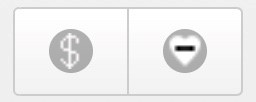
4. In addition to the pricing icon, there is now a heart icon.

5. Tap the heart icon to add the converter to “My Quick List”.
6. The heart icon now appears with an “-” through it, to show that it has been added to “My Quick List”.
7. To remove the converter from the Quick List, tap the heart icon and the “-“disappears.
How to view converters in the My Quick List
Tap on Converter Search from the Main Menu.
1. Tap on the Heart Icon.

2. A list of converters is displayed.
If the following error message appears - No Open Count Sheets - as shown below, you need to change Touch Screen List Style in User Settings.
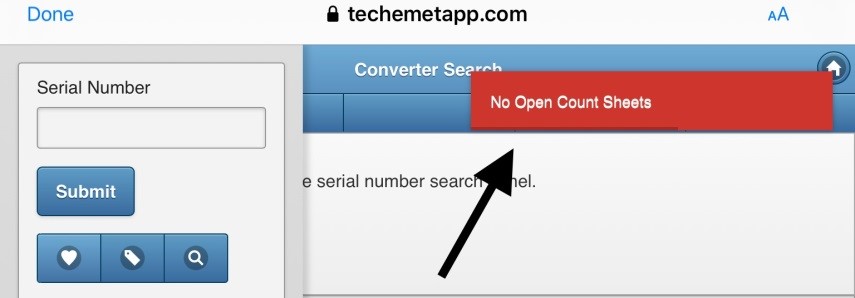
• Go to User Settings
• Go to Touch Screen List Style
• Change to Individual (Pictures).
• Refresh the App with the refresh button.
The converters are displayed once you follow steps 1 & 2 above.
How to view converters in the Popular List feature
Tap on Converter Search from the Main Menu.
1. Tap the TAG icon.

2. A list of popular converters appears.
If the following error message appears “No Open Count Sheets” as shown below, you need to change Touch Screen List Style in User Settings.
• Go to User Settings
• Go to Touch Screen List Style
• Change to Individual (Pictures).
• Refresh the App with the refresh button.
The converters are displayed once you follow steps 1 & 2 above.
If there is an open Count Sheet, and the Touch Screen List Style field in User Settings is set to Limited (Touch Screen), the Quick List and Popular List will display in columns, showing only the converter serial number and not picture. The number of columns to be displayed is found under the User Settings in the Touch Screen Counter Number of Columns field.
If there is an open Count Sheet, and the Touch Screen List Style field in User Settings is set to Individual, the Quick List and Popular List will display in columns showing the picture of the converter as well as the serial number.
Adding converters to the Count Sheet from the Quick List/Popular list
Once the converters are viewed as above, they can be added to a Count Sheet if one is open.
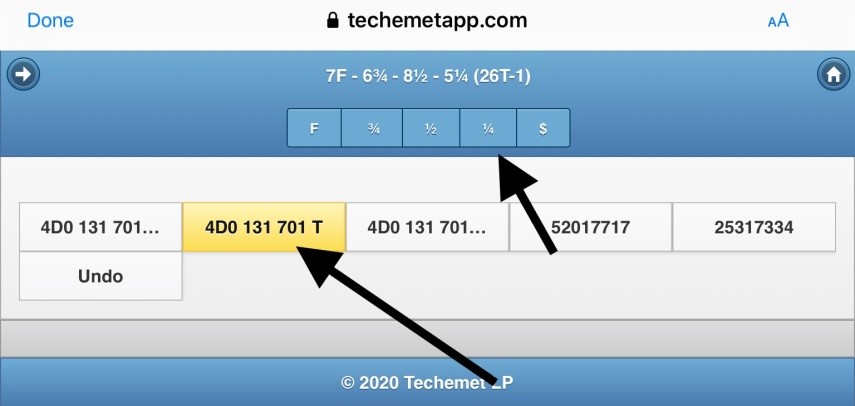
If the converters are displayed in the Limited Touch Screen format (no photo and only the serial number) add the converter to the Count Sheet as follows:
Tap the fill type at the top of the page (F, ¾, ½, ¼). The fill type selected is highlighted.

Tap on the converter that you wish to add from the Quick List / Popular List to the Count Sheet.
The selected converter is highlighted.
If the User Settings are set to Touch Screen List Style of Individual (Pictures) the converters are displayed with a photo of the converter. For information on how to add the converters to the Count Sheet please refer to the Count Sheet section under the Help.